by
by  Confused by the Facebook attribution model for ads?
Wondering which ad should receive credit for a conversion?
In this article, you'll learn how to use the Facebook Attribution Window feature for Facebook ad campaigns.
How Does Facebook Ad Attribution Work?
When people interact with your Facebook ads or Instagram ads, they can take a variety of actions such as watching your video, visiting your website, or purchasing your product. Each of these actions is recorded. When your ad leads to a conversion, Facebook will attribute (credit) the ad in Ads Manager. It’s important to have this data to see how well your campaigns and ads are doing and determine if you're reaching your targets.
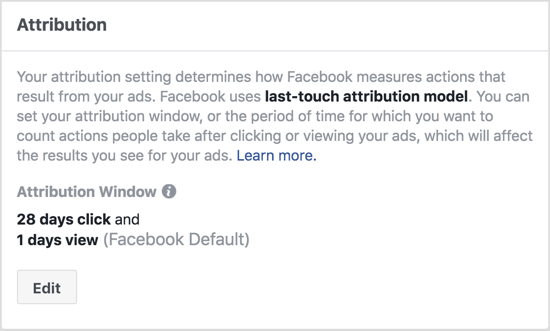
The number of days between when someone viewed or clicked your ad and then took action on your website is referred to as an “attribution window.” The default Facebook attribution window settings show actions taken within 1 day of viewing your ad and within 28 days of clicking your ad. You can change the settings for both the view and click windows to 1, 7, or 28 days.
Facebook reports on both views and clicks of ads taken within the attribution window. Remember that Facebook attributions are for the date the ad was viewed or clicked, not the date the conversion took place.
Now that you understand how attribution works, here's how to start tracking attributing actions taken on your website to your Facebook ads.
#1: Set Up the Facebook Pixel and Conversion Tracking
If you haven't already installed the Facebook pixel (a piece of code) on your website, you need to do that first. Check out this article for a detailed step-by-step guide for installing the pixel.
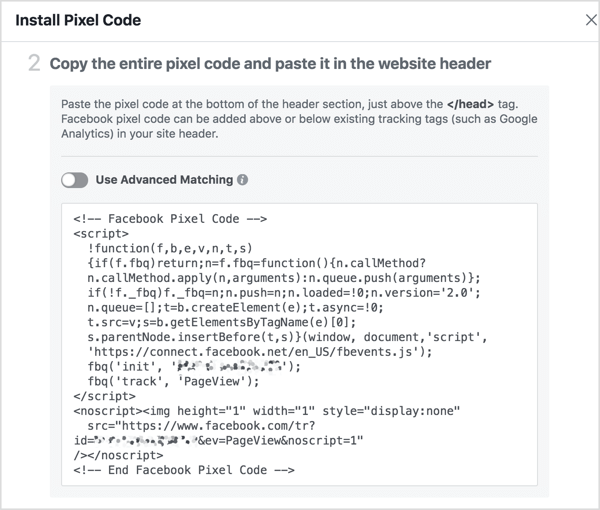
You also need to add code to your website so Facebook can recognize when visitors take certain actions (called event tracking). To illustrate, by installing an event pixel on your “Thank you for purchasing” page, Facebook can determine if a purchaser has viewed one of your ads and if a sale can be attributed to that ad.
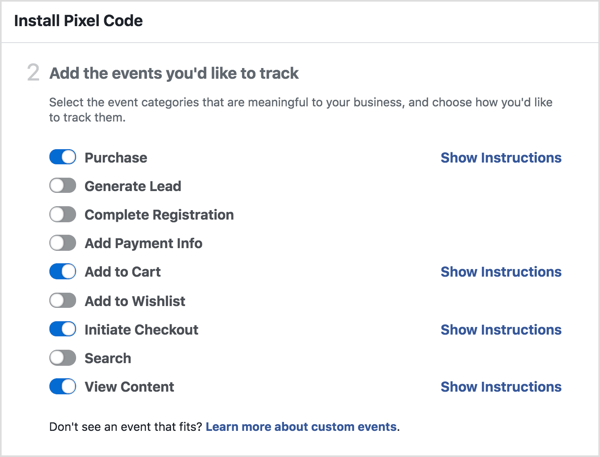
You can choose from a number of events to track. I recommend adding the Add to Cart, Initiate Checkout, Purchase, and Viewed Content events. (Page views are included as part of the pixel base code.)
Go Deeper Than an Article Can Take You
Join thousands of small-business marketers at Social Media Marketing World — three days of AI, social media, and marketing strategy taught by world-class experts. April 1–3, 2027 in Anaheim.
Every session is pitch-free and built around tactics you can use yourself, no big team required. Your All-Access ticket includes an extra day of workshops, full access to AI Business World, and recordings of everything.
GET MY ALL-ACCESS TICKET — SAVE $800For each event, you can set parameters to generate the code you need. In the example below, you want to install a pixel for the Purchase event with a conversion value of $10.
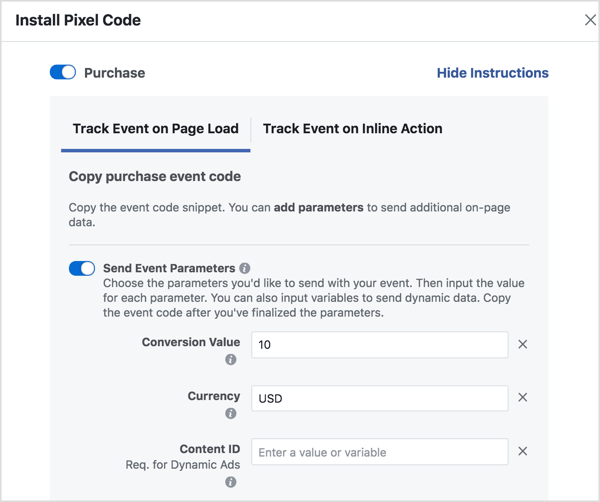
Once you've set your parameters, paste the code into your website pages.
A few hours after setting up the tracking, check that the number of Facebook pixel fires matches what has been recorded in your conversion tracking. It's important to make this data check for the current day and not for previous days.
To check the number of Facebook pixel fires, open Business Manager, then Ads Manager, and select Pixels under Measure & Report.
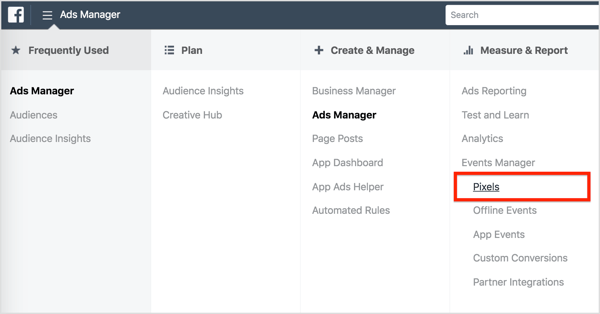
You can then see data for each of the event pixels you've added. At this point, nothing has been attributed, so simply make sure the number of purchases in the pixel manager line up with your actual number of overall purchases.
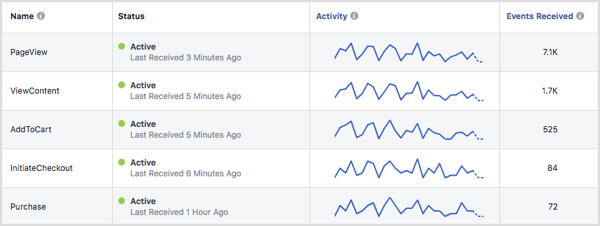
If your pixel data and sales data don't match, your pixel probably isn't tracking correctly. If you have issues, use the Pixel Helper tool to run through the different actions that can be taken on your site. The Pixel Helper should help you determine if any pixels aren't firing correctly.
#2: Change Your Facebook Attribution Window
Before making changes to the time frame of your Facebook attribution window, it's important to consider what type of business you have. For instance, a large number of people may make a purchase a day (or several days) after being served an ad from an ecommerce store, but higher-priced products tend to have longer windows.

Tired of Guessing Which AI Moves Matter?
New AI tools and strategies launch every week — and figuring out which ones matter takes hours you don't have.The AI Business Society filters the noise for you, with expert-led training you can put to work the same day — plus a community of marketers sharing what's actually working.
I'M READY FOR REAL AI RESULTSNo matter what your business type is, consider all attribution windows before choosing the one you want to report on. Whatever window you use, Facebook will never take credit for conversions (or other actions) taken outside of a Facebook attribution window.
To change your attribution window, open Ads Manager and go to Settings.
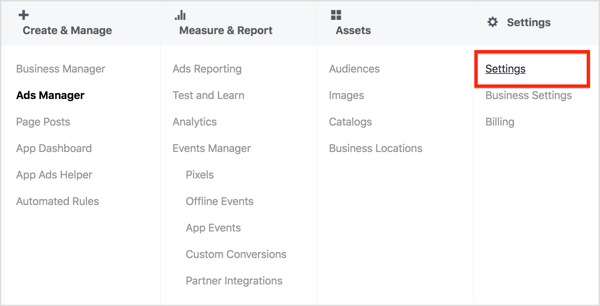
In the Attribution section on the right side of the page, click Edit. Then drag the slider to select your preferred click window and view window. When you're done, click Save Changes.
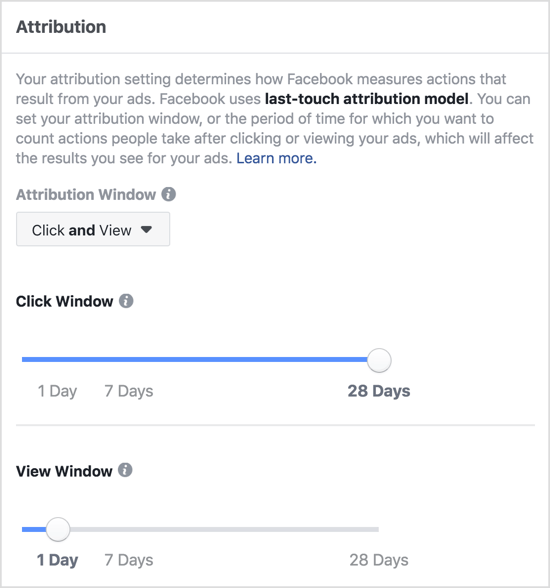
Be aware that when you change your attribution window, the default conversion window for any future ads you place will be as closely aligned to your selected attribution window as possible. If you don't want this default, you can manually change your conversion window as well.
#3: Add Facebook Attribution Window Comparisons to Campaign Reports
To see when people most often take action after viewing your ads, you can compare one Facebook attribution window against another. Analyzing results from different lookback periods also allows you to see clicks and views data separately.
To compare attribution windows, open Ads Manager and click the Campaigns, Ad Sets, or Ads tab, depending on which one you want to change the reporting metrics on.
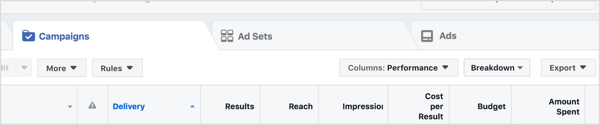
Next, click the Columns drop-down menu and select Customize Columns.
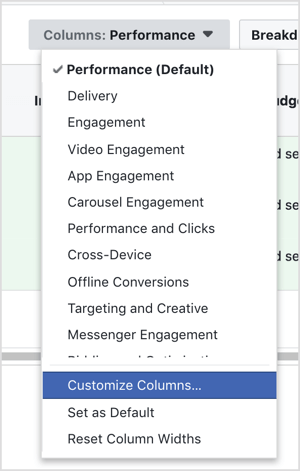
In the Customize Columns window, click Comparing Windows in the lower-right corner.
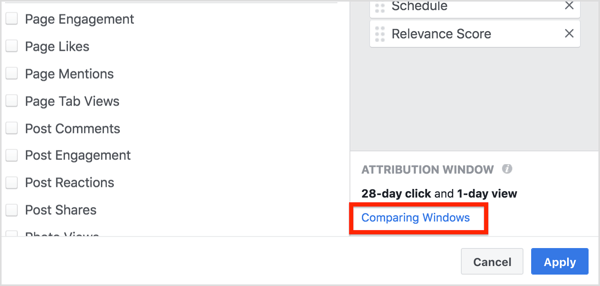
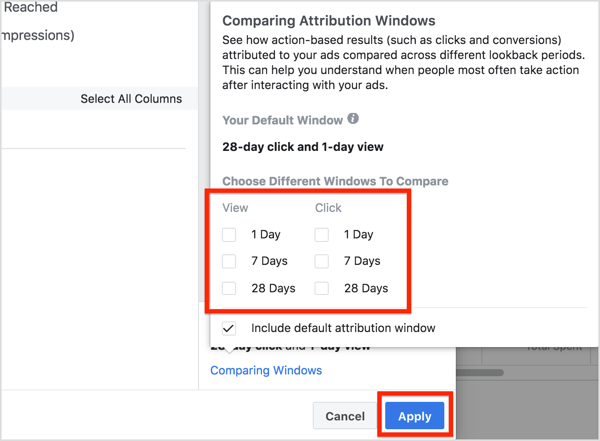
In the Comparing Attribution Windows box that pops up, select the attribution windows you want to analyze. Then click the blue Apply button.
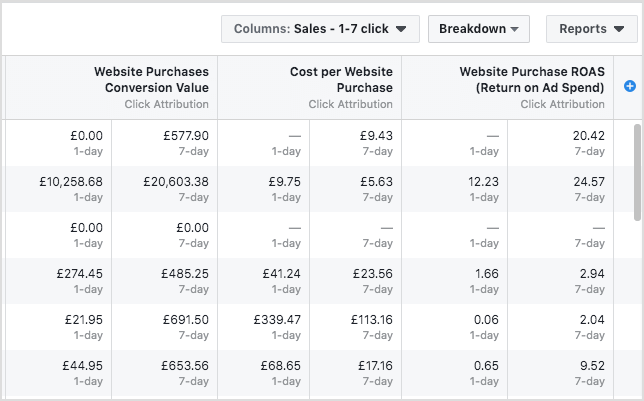
After you click Apply, the new attribution columns will appear in your Ads Manager and you'll be able to see the conversion results from the different windows you selected.
#4: Understand Attribution Report Data
Facebook counts figures on the day the ad view/click happened, not the day the conversion occurred. This is the reason that a prior month's data isn't fixed and will explain a lot of the discrepancies you find in your data. Remember that the Facebook attribution model is different from most others, such as Google Analytics attribution.
You might assume that attribution data will be from people who converted immediately after clicking an ad. However, this isn't always the case. Some people may convert days or even weeks after being served a Facebook ad.
Facebook records who has clicked or viewed an ad, as well as who has fired a pixel on a conversion page on your website. This allows Facebook attribution to correlate a conversion with the date of an ad impression (provided it's within the attribution window).
To visualize this, if a customer clicks on a Facebook ad on June 17 and makes a purchase on July 5, the conversion will be attributed to June 17.

While you can assume that some purchases will be made immediately post-click, it's not uncommon for reporting discrepancies to arise due to purchases made days or weeks later.
Here are some other key points about this attribution model that will help you understand where the report data comes from:
- Conversions have to be within your window. Facebook will only receive attributions from purchases if they happened within the time frame of the attribution window.
- Clicks get credit over views. Conversions can be attributed to only one date. If a person has viewed an ad and clicked an ad, the conversion will be attributed to the click, even if the view occurred after the click. Conversions are attributed to views only if a click hasn't been made at any point during the attribution window.
- Multiple actions count as a click. Any engagement action counts as a click. As an example, if someone likes, comments on, or shares your ad, this action counts as a click and the conversion will be attributed to that date.
Click here to learn more about how to use Facebook ads for business.
What do you think? What Facebook attribution window settings work best for your business? Have you tried comparing attribution windows? Please share your thoughts in the comments below.

Where Do You Actually Stand With AI?
Most marketers use AI, but they don't know what's holding them back from real results.
Our 3-minute quiz pinpoints the one gap keeping you stuck — and gives you the exact next step to fix it.
GET MY RESULTS