by
by  Do you want an efficient way to stay in touch with your peers, customers and colleagues on Instagram?
Have you considered creating custom feeds of their updates?
There are tools that make it easy to organize your favorite Instagram accounts into feeds so you never miss an update again.
In this article you'll discover how to use Mashfeed and Iconosquare to create customized Instagram feeds.
Listen to this article:
Where to subscribe: Apple Podcasts | Spotify | YouTube Music | YouTube | Amazon Music | RSS
#1: Create Instagram Feeds With Mashfeed
Mashfeed allows you to create your own custom feeds from Instagram, as well as from Twitter, YouTube and Facebook (even from accounts you don't follow). The app makes it easy to categorize your favorite accounts.
Mashfeed is available for iPhone and you can download it from the App Store for free.
Set Up a Feed
When you first open the app, you need to create an account.
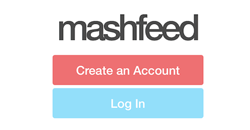
Pick a username, enter a password and type in your email address. You're then prompted to add a photo, invite friends and follow suggested feeds, but you can skip these steps if you want.
To create an Instagram feed, tap the + button in the top-right corner of the screen.

In the field at the top, enter a name for your new feed. By default, the feed is public, but you can make it private by tapping Change. Then tap Add Ingredients.
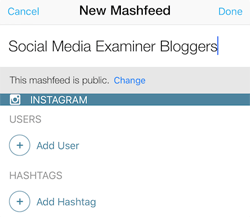
Now you're ready to add Instagram users or hashtags you'd like to follow. To do that, tap the Add User button.
The first time you use the app, you'll be prompted to connect it to your Instagram account. Tap the Connect to Instagram button and then type in your username and password.
Ready to Supercharge Your Marketing Strategy?

Get expert training and an unbeatable conference experience when you attend Social Media Marketing World—from your friends at Social Media Examiner.
Broaden your reach, skyrocket your engagement, and grow your sales. Become the marketing hero your company or clients need!
🔥 Save $570 on an All-Access ticket. Sale Ends Tuesday! 🔥
GET THE DETAILS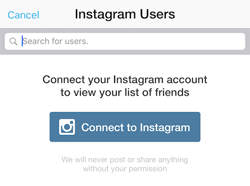
After logging into your Instagram account, tap Authorize to allow Mashfeed to access it. Once you've successfully connected your Instagram account, you can start adding users and hashtags to your Instagram feed.
To add a user, tap Add User and then tap on the username of the account you'd like to add. You can use the search box at the top of the screen to find specific users.
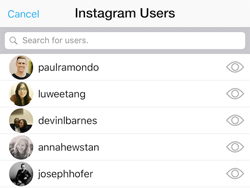
If you want to view a user's profile before adding the account to your Instagram feed, tap the eye icon to the right of the username. When you're finished adding users to your feed, tap Done in the top-right corner of the screen.
View Your Feeds
To view all of the Instagram feeds you've created, tap the Home button at the bottom of the screen.

Then tap on the Instagram feed you want to view.
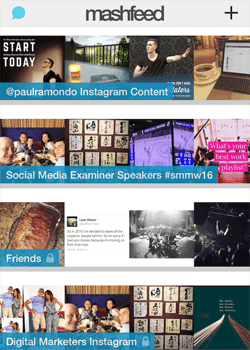
You'll then see the most recent content from the accounts within that Instagram feed.
Like Iconosquare, you can heart Instagram posts within the app. If you tap a username within your feed, here are some additional tasks you can do:
- Unfollow the account.
- Add the account to another Instagram feed you've created.
- View all of the posts from that Instagram account.
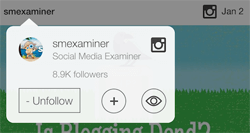
Unlike Iconosquare, Mashfeed doesn't allow you to comment directly through your Instagram feeds, which is a frustrating limitation of the app.
That said, many other third-party apps (including Iconosquare) use Instagram's API to allow users to post comments outside of Instagram's native environment. So hopefully this functionality will make its way into a future update of the Mashfeed app.
#2: Create Instagram Feeds With Iconosquare
Iconosquare is an online tool that provides metrics about your Instagram followers for free. You can also use it to create Instagram feeds you can view through your desktop or smartphone browser. Here's how to get started.
Set Up a Group
First, you need to create an Iconosquare account. In the top-right corner of the home page, click the Sign in With Instagram button.
Once you've signed into your Instagram account, you'll be redirected to the Iconosquare dashboard.
Next, you need to create groups to organize the accounts you follow. To do this, click the My Followings tab at the top of the dashboard.

Now hover over the circle below any accounts you're following and on the pop-up menu, click New Group.
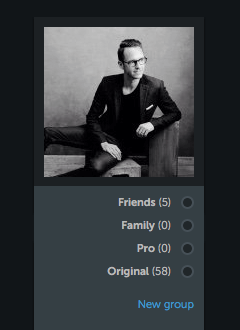
Type in a name for the new group and then click the blue Create button.
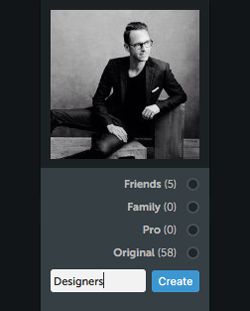
Repeat this process for any accounts you're following that you'd like to organize in Instagram groups.
AI Is No Longer Optional for Marketers—Ready to Master It?

Join over a thousand forward-thinking marketers at AI Business World—a conference-in-a-conference at Social Media Marketing World.
Get two days of practical AI training where you'll discover:
✅ Systems that 3x your output—leaving time for strategy and creativity
✅ Proven strategies you can deploy right away—no guesswork, no wasted budget
Become the indispensable AI expert your company needs.
GET YOUR TICKETS—SAVE $250To view the groups you've created, navigate to the Feed tab on your dashboard. From the drop-down menu in the top left, choose the group you want to view (by default, Everybody is selected).
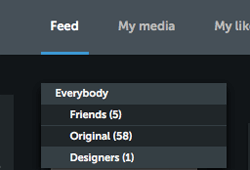
You'll then see the most recent updates from the people you're following in that group.
View Your Groups on Your Smartphone
In addition to viewing your Instagram feeds through your desktop browser, you'll likely want to be able to view these groups on your smartphone as well.
On your desktop browser, copy the URL that relates to the group you want to view on mobile and keep it handy for the next step.

If you have Grid View selected, the URL will look something like this:
`__abENT__lt;code__abENT__gt;__abENT__#95;__abENT__#95;abENT__abENT__#95;__abENT__#95;lt;code__abENT__#95;__abENT__#95;abENT__abENT__#95;__abENT__#95;gt;http:__abENT__#95;__abENT__#95;abENT__abENT__#95;__abENT__#95;#95;__abENT__#95;__abENT__#95;abENT__abENT__#95;__abENT__#95;#95;abENT__abENT__#95;__abENT__#95;abENT__abENT__#95;__abENT__#95;#95;__abENT__#95;__abENT__#95;abENT__abENT__#95;__abENT__#95;#95;#8260;__abENT__#95;__abENT__#95;abENT__abENT__#95;__abENT__#95;#95;__abENT__#95;__abENT__#95;abENT__abENT__#95;__abENT__#95;#95;abENT__abENT__#95;__abENT__#95;abENT__abENT__#95;__abENT__#95;#95;__abENT__#95;__abENT__#95;abENT__abENT__#95;__abENT__#95;#95;#8260;iconosquare__abENT__#95;__abENT__#95;abENT__abENT__#95;__abENT__#95;#95;__abENT__#95;__abENT__#95;abENT__abENT__#95;__abENT__#95;#95;abENT__abENT__#95;__abENT__#95;abENT__abENT__#95;__abENT__#95;#95;__abENT__#95;__abENT__#95;abENT__abENT__#95;__abENT__#95;#95;#46;com__abENT__#95;__abENT__#95;abENT__abENT__#95;__abENT__#95;#95;__abENT__#95;__abENT__#95;abENT__abENT__#95;__abENT__#95;#95;abENT__abENT__#95;__abENT__#95;abENT__abENT__#95;__abENT__#95;#95;__abENT__#95;__abENT__#95;abENT__abENT__#95;__abENT__#95;#95;#8260;viewer__abENT__#95;__abENT__#95;abENT__abENT__#95;__abENT__#95;#95;__abENT__#95;__abENT__#95;abENT__abENT__#95;__abENT__#95;#95;abENT__abENT__#95;__abENT__#95;abENT__abENT__#95;__abENT__#95;#95;__abENT__#95;__abENT__#95;abENT__abENT__#95;__abENT__#95;#95;#46;php#__abENT__#95;__abENT__#95;abENT__abENT__#95;__abENT__#95;#95;__abENT__#95;__abENT__#95;abENT__abENT__#95;__abENT__#95;#95;abENT__abENT__#95;__abENT__#95;abENT__abENT__#95;__abENT__#95;#95;__abENT__#95;__abENT__#95;abENT__abENT__#95;__abENT__#95;#95;#8260;feed__abENT__#95;__abENT__#95;abENT__abENT__#95;__abENT__#95;#95;__abENT__#95;__abENT__#95;abENT__abENT__#95;__abENT__#95;#95;abENT__abENT__#95;__abENT__#95;abENT__abENT__#95;__abENT__#95;#95;__abENT__#95;__abENT__#95;abENT__abENT__#95;__abENT__#95;#95;#8260;grid__abENT__#95;__abENT__#95;abENT__abENT__#95;__abENT__#95;#95;__abENT__#95;__abENT__#95;abENT__abENT__#95;__abENT__#95;#95;abENT__abENT__#95;__abENT__#95;abENT__abENT__#95;__abENT__#95;#95;__abENT__#95;__abENT__#95;abENT__abENT__#95;__abENT__#95;#95;#8260;40981803__abENT__#95;__abENT__#95;abENT__abENT__#95;__abENT__#95;lt;__abENT__#95;__abENT__#95;abENT__abENT__#95;__abENT__#95;#8260;code__abENT__#95;__abENT__#95;abENT__abENT__#95;__abENT__#95;gt;__abENT__lt;__abENT__#8260;code__abENT__gt;`
If you have List View selected, it will look similar to this:
`__abENT__lt;code__abENT__gt;__abENT__#95;__abENT__#95;abENT__abENT__#95;__abENT__#95;lt;code__abENT__#95;__abENT__#95;abENT__abENT__#95;__abENT__#95;gt;http:__abENT__#95;__abENT__#95;abENT__abENT__#95;__abENT__#95;#95;__abENT__#95;__abENT__#95;abENT__abENT__#95;__abENT__#95;#95;abENT__abENT__#95;__abENT__#95;abENT__abENT__#95;__abENT__#95;#95;__abENT__#95;__abENT__#95;abENT__abENT__#95;__abENT__#95;#95;#8260;__abENT__#95;__abENT__#95;abENT__abENT__#95;__abENT__#95;#95;__abENT__#95;__abENT__#95;abENT__abENT__#95;__abENT__#95;#95;abENT__abENT__#95;__abENT__#95;abENT__abENT__#95;__abENT__#95;#95;__abENT__#95;__abENT__#95;abENT__abENT__#95;__abENT__#95;#95;#8260;iconosquare__abENT__#95;__abENT__#95;abENT__abENT__#95;__abENT__#95;#95;__abENT__#95;__abENT__#95;abENT__abENT__#95;__abENT__#95;#95;abENT__abENT__#95;__abENT__#95;abENT__abENT__#95;__abENT__#95;#95;__abENT__#95;__abENT__#95;abENT__abENT__#95;__abENT__#95;#95;#46;com__abENT__#95;__abENT__#95;abENT__abENT__#95;__abENT__#95;#95;__abENT__#95;__abENT__#95;abENT__abENT__#95;__abENT__#95;#95;abENT__abENT__#95;__abENT__#95;abENT__abENT__#95;__abENT__#95;#95;__abENT__#95;__abENT__#95;abENT__abENT__#95;__abENT__#95;#95;#8260;viewer__abENT__#95;__abENT__#95;abENT__abENT__#95;__abENT__#95;#95;__abENT__#95;__abENT__#95;abENT__abENT__#95;__abENT__#95;#95;abENT__abENT__#95;__abENT__#95;abENT__abENT__#95;__abENT__#95;#95;__abENT__#95;__abENT__#95;abENT__abENT__#95;__abENT__#95;#95;#46;php#__abENT__#95;__abENT__#95;abENT__abENT__#95;__abENT__#95;#95;__abENT__#95;__abENT__#95;abENT__abENT__#95;__abENT__#95;#95;abENT__abENT__#95;__abENT__#95;abENT__abENT__#95;__abENT__#95;#95;__abENT__#95;__abENT__#95;abENT__abENT__#95;__abENT__#95;#95;#8260;feed__abENT__#95;__abENT__#95;abENT__abENT__#95;__abENT__#95;#95;__abENT__#95;__abENT__#95;abENT__abENT__#95;__abENT__#95;#95;abENT__abENT__#95;__abENT__#95;abENT__abENT__#95;__abENT__#95;#95;__abENT__#95;__abENT__#95;abENT__abENT__#95;__abENT__#95;#95;#8260;list__abENT__#95;__abENT__#95;abENT__abENT__#95;__abENT__#95;#95;__abENT__#95;__abENT__#95;abENT__abENT__#95;__abENT__#95;#95;abENT__abENT__#95;__abENT__#95;abENT__abENT__#95;__abENT__#95;#95;__abENT__#95;__abENT__#95;abENT__abENT__#95;__abENT__#95;#95;#8260;40981803__abENT__#95;__abENT__#95;abENT__abENT__#95;__abENT__#95;lt;__abENT__#95;__abENT__#95;abENT__abENT__#95;__abENT__#95;#8260;code__abENT__#95;__abENT__#95;abENT__abENT__#95;__abENT__#95;gt;__abENT__lt;__abENT__#8260;code__abENT__gt;`
Now open a web browser on your smartphone and log into Iconosquare. Then paste the URL from above into the browser's address bar.
You'll see only the content from the people in that particular group.

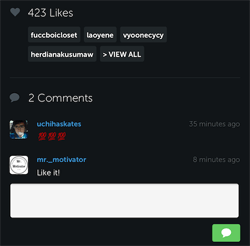
In your newly created Instagram feed, you can heart and comment on the content just as you normally would.
Now you'll want to create a shortcut for your Instagram group to make it easy to access it on your smartphone.
To do this on the iPhone, tap the middle button at the bottom of the screen (it looks like an upward-pointing arrow in a box).

Tap Add to Home Screen and then tap Add in the upper-right corner of the screen.
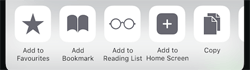
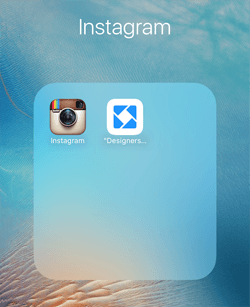
Repeat this step for all of your Instagram feeds/groups and then add them to a folder on your iPhone for easy access later.
Final Thoughts
With the growth that Instagram is experiencing in both users and content, it's becoming increasingly difficult to stay up to date with the accounts you love and look to for third-party content to share with your followers.
With Mashfeed and Iconosquare, you can create easy-to-digest Instagram feeds. This allows you to see and interact with the content you care about the most, no matter how many Instagram accounts you follow.
What do you think? Have you created Instagram feeds with these tools? Have they helped you to declutter your Instagram account? Do you have any other tips to offer? Please share your thoughts in the comments below.

Want to Unlock AI Marketing Breakthroughs?
If you’re like most of us, you are trying to figure out how to use AI in your marketing. Here's the solution: The AI Business Society—from your friends at Social Media Examiner.The AI Business Society is the place to discover how to apply AI in your work. When you join, you'll boost your productivity, unlock your creativity, and make connections with other marketers on a similar journey.
I'M READY TO BECOME AN AI-POWERED MARKETER