by
by  Have you ever wondered how certain Facebook pages add Like buttons to their custom tabs? Look no further.
Many have asked me how sites like Threadless are able to add multiple Like buttons and comments to their Fan page, allowing visitors to buy, Like and comment on any t-shirt on their Shop tab.
Well, it turns out it's actually quite easy, using the fb:comments FBML tag.
Using fb:comments, you can add a Like button and comment boxes in multiple places on your Facebook tabs and, optionally, each can be accompanied by a user comments section. This provides more avenues for fans to interact with, and share, your content.
The Threadless Fan Page — How Do They DO That?
The Threadless Fan Page “Shop” tab displays a selection of six t-shirts from their catalog, and visitors can order, Like and/or comment on each one.
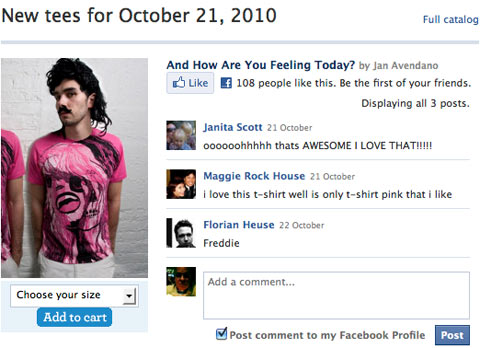
The left column in the above illustration is a product image and a pull-down select option. Once a user makes a selection and clicks “Add to cart,” he or she is redirected to the Threadless.com website to complete the purchase.
The right column content is created using the fb:comments FBML tag:
<fb:comments xid=”UNIQUE-IDENTIFIER” canpost=”true” candelete=”false” reverse=”true” returnurl=”http://www.threadless.com/product/1295/And_How_Are_You_Feeling_Today”>
<fb:title></fb:title>
</fb:comments>
3 Days of World-Class Training—Zero Travel!

Couldn't make it to Social Media Marketing World and AI Business World this year? Get all of the great content at a fraction of the price with a Virtual ticket.
That’s full access to recordings of every keynote, workshop, and session—the ones people travel thousands of miles to see. Don't wait. Get your Virtual ticket and enjoy actionable content that you can watch anytime, anywhere.
The parameters and values used for fb:comments
- xid: This is the unique identifier for this instance of the fb:comments tag. You must include a value, and I suggest using something short and descriptive. You're limited to alphanumeric characters, hyphens, the percent sign, periods and underscores. The user won't see this content; it's just for creating a value that can be accessed by developers for programming purposes.
Some examples are:
xid=”Product-205″
xid=”Product-Blue-Shoes
xid=”Tan_50%” - canpost: You'll most likely want “true” for this value, indicating the user can post a comment.
- candelete: You'll want “false” for this, meaning a user can't delete any of the comments.
- reverse: Setting this to “true” places the “Add a Comment” box below the posted comments, as is done on the Threadless page.
- returnurl: This is the most important value! This is the URL that the user is Liking when he or she clicks the Like button. If the user ticks the “Post comment to my Facebook Profile” box, the comment will appear on their wall as “[User] likes [Website's Title Tag] on [URL].” You can have any valid URL for the “returnurl” parameter. Threadless has the product's page on their website as the “returnurl” value.
Using CSS to hide unwanted elements in the fb:comments tag
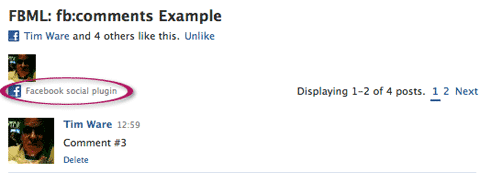
You can easily hide this element from being displayed. Using the Firefox plugin “Firebug” (a must-have for coders!), I determined that the little Facebook logo and “Facebook social plugin” text are contained in a DIV assigned the class “subtitle_left“, and this DIV can be hidden, in all browsers, with CSS.
To hide this content, you simply add:
.subtitle_left {display:none;}
to your stylesheet, which hides the DIV:
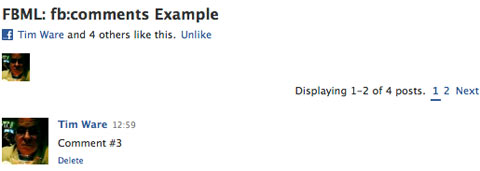
Just want the Like button? Use CSS to hide the comment box
If you want only the Like button and not the comments box, you can use the “display:none” CSS property to hide the unwanted comments box.
Because all the comment features are contained in a DIV assigned the class “comment_body” (thanks again, Firebug!), just add the following CSS rule to your stylesheet:

Which AI Moves Actually Matter?
That's what every marketer is wrestling with now. New AI strategies, new tools, new takes every week — but no clarity. Most marketers and business owners are trying to figure out AI alone.The AI Business Society is your trusted guide. Get expert-led training you can put to work immediately. Plus a community of marketers sharing what's actually working.
I'M READY FOR REAL AI RESULTS.comment_body {display:none;}
The result:

Adding Multiple Instances of the Like Button
You can have as many instances of the fb:comments FBML tag on your custom tab as you wish. Just make sure that each has a unique “xid” value.
Giving users more options than just Liking your page and/or sharing it means more user engagement and more mentions of your brand showing up on users' walls.
Give it a try and let us know how it works. Leave your questions and comments in the box below.

Curious About How to Use AI?
Our newest show, AI Explored, might be just what you're looking for. It's for marketers, creators, and entrepreneurs who want to understand how to use AI in their business.
It's hosted by Michael Stelzner and explores this exciting new frontier in easy-to-understand terms.
Pull up your favorite podcast app and search for AI Explored. Or click the button below for more information.