by
by  Now that Facebook is fully supporting custom iFrame tabs and phasing out FBML and the Static FBML support, many page admins are wondering how best to add functionality to their iFrame tabs.
For example, how do you add popular FBML tags that facilitated interaction on Facebook, such as Reveal/Fan-Gating, Multi-Friend Invite, Share button, Like button and Comments.
Facebook Social Plugins to the Rescue!
Fortunately, a subset of the XFBML tags (a.k.a. Social Plugins) intended for use on websites to integrate them into Facebook's “social graph” also work great on iFrame tabs.
Now page admins can simply add a free iFrame tab application to their page, which makes adding a fan-gating feature very easy, and they can add Like buttons, Send buttons and/or Comments boxes to their tabs.
In this article, I'll explain how to add these three social plugins to your custom iFrame tab.
Generating the XFBML Tag code — Facebook does it for you!
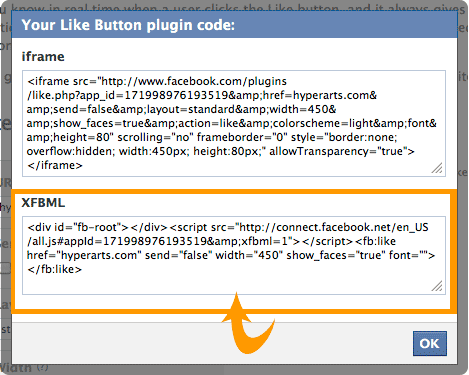
You can get the code for the social plugins on Facebook's Social Plugins page. Just navigate to the tag you want, enter the options on that tag's page, and then click “Get Code.”
If you're generating the Like button without the Send button, make sure you copy the XFBML version of the code (NOT the “iframe” version — it won't work) to your clipboard.
#1: The Like button: From your tab to users' news feeds
The Like button is easily the most popular of the social plugins. You can have as many Like buttons on an iFrame tab as you want. For each Like button, you can specify a target URL, which can be a Facebook fan page or any other URL on the web. However, you cannot link to a specific fan page tab, only to the fan page itself.
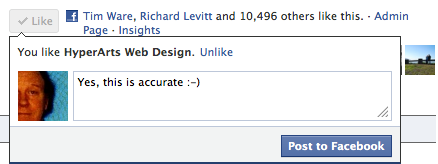
Users have the option to add a personalized message in the Like dialog box that pops up when the Like button is clicked. If the user doesn't add a message, a simple text message posts to their wall with a link to the target URL in the image below:

However, if the user does add a message, their like will show up on their wall and news feed with their comment, your logo and a link to the target URL, PLUS:
- If the target URL is a Facebook fan page, the post will also include the company name and the About Box content (in the left column after the navigation), followed by ” | Facebook”:
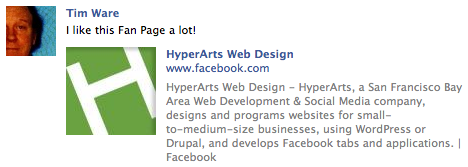
- If the target URL is an external website, the wall post will use an image and content specified in that website's “meta” tags if they're specified in the code of the target URL. If they aren't specified, Facebook will grab a random image on the page, as well as random text. (Learn how to control images and text with meta tags.)
The image below is a wall post where the URL for the Like button has a meta-tag that specifies an image (“image_src”) as well as a “description” meta-tag that supplies the text below the link.
AI Is No Longer Optional for Marketers—Ready to Master It?

Join over a thousand forward-thinking marketers at AI Business World—a conference-in-a-conference at Social Media Marketing World.
Get two days of practical AI training where you'll discover:
✅ Systems that 3x your output—leaving time for strategy and creativity
✅ Proven strategies you can deploy right away—no guesswork, no wasted budget
Become the indispensable AI expert your company needs.
GET YOUR TICKETS—SAVE $150
#2: The Send button: Direct sharing/messaging
On April 25, 2011, one year after the introduction of Social Plugins, Facebook rolled out the Send button.
Ready to Supercharge Your Marketing Strategy?
Get expert training and an unbeatable conference experience when you attend Social Media Marketing World—from your friends at Social Media Examiner.
Broaden your reach, skyrocket your engagement, and grow your sales. Become the marketing hero your company or clients need!
🔥 Save $500 on an All-Access ticket. Sale Ends Tuesday! 🔥
GET THE DETAILS
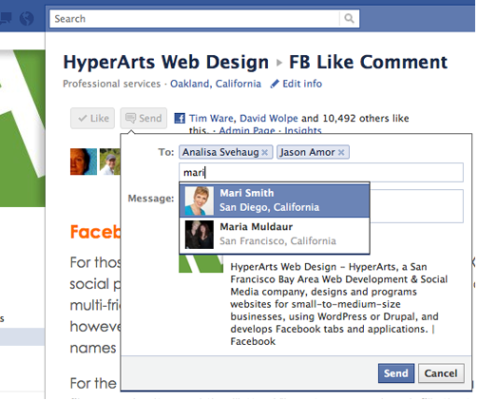
The Send button alone, or paired with the Like button
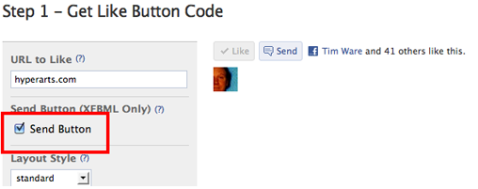
There are two ways to implement the Send button: 1) paired with the Like button (as shown above), or 2) stand-alone. Use the Like button code generator to create a Like/Send combination by checking the “Send button” option in the code generator:
The Send button replaces “Share with Friends” and the FBML multi-friend selector
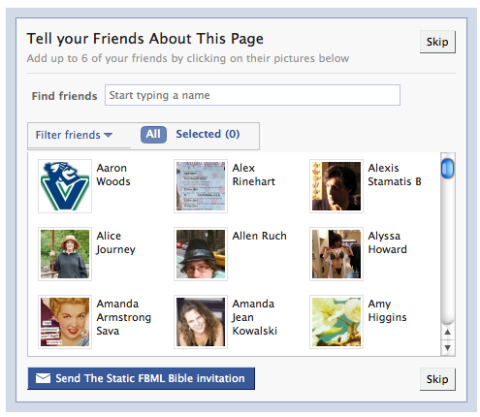
Back in the old days (pre-April 2011), pages could incorporate the FBML tag “fb:multi-friend-selector,” which displayed pictures of your friends to click to select for the message:
And there was the “suggest to friends” text link near the top of the right column that popped a similar dialog box. It's actually still there (!), and you can select friends and click “send recommendations” … but the message never arrives.
The Send button now brings this feature back to Facebook pages, but much improved.
Direct messaging to Facebook friends, groups and email addresses
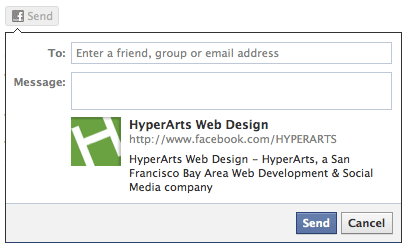
When a user clicks the Send button, a dialog pops up (as shown below) where users can enter their friends' names, Facebook groups or simply email addresses, and whatever message they send, plus the specified target URL.
- If sent to friends, they receive a Facebook message that includes your comments, the image associated with the URL and description (derived as described above for the Like button).
- If sent to a Facebook group, the message appears on the group's wall.
- If sent to an email address, the recipients receive an email with the subject line “conversation with [your name]”, your added message and the URL.
#3: The Comments box: Improved
Facebook's comments box social plugin allows you to add a Comments box similar to the old FBML fb:comments tag, but much better, as it allows threaded discussions, and more closely replicates the wall.
Unique from the Like and Send buttons, you can specify a Facebook tab URL for each Comments box you create.
When you generate the code on the Comments box social plugins page, you don't need to have “http://www.” in the URL field. Facebook will fill that in:
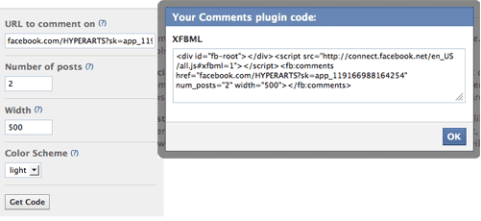
There are a number of moderation features when using this plugin on an external website, but these don't seem to be available when the Comments box is on an iFrame tab.
Great opportunities for brands using custom iFrame tabs
These new and enhanced tags are just the beginning. I imagine that page admins will see a number of social plugin enhancements in the coming months. And we won't be missing FBML at all!
What do you think? Do you have any specific social plugins you'd like to see that haven't been developed yet? Leave your comments in the box below.

Want to Unlock AI Marketing Breakthroughs?
If you’re like most of us, you are trying to figure out how to use AI in your marketing. Here's the solution: The AI Business Society—from your friends at Social Media Examiner.The AI Business Society is the place to discover how to apply AI in your work. When you join, you'll boost your productivity, unlock your creativity, and make connections with other marketers on a similar journey.
I'M READY TO BECOME AN AI-POWERED MARKETER