by
by Looking for a way to get actual work done with AI, not just chat with it? Tired of micromanaging every step of an AI conversation only to hit context limits before you finish?
In this article, you’ll discover how to start using Claude Cowork to manage your files, automate tasks, connect your tools, and build reusable workflows.
What Is Claude Cowork?
Launched in January 2025, Claude Cowork is an agentic desktop application from Anthropic that runs on top of Claude.
Rather than chatting your way through a task’s execution, you act as a manager or supervisor of multiple AI agents made up of Projects, Connectors, and Skills coordinated through the Cowork interface.
Dan Nestle describes its core value this way: a standard Claude Project is like a bright new hire who constantly stands at your desk asking for direction. Cowork is the experienced employee who takes a clear brief, goes off to handle it, and only comes back when something requires your input.
Here are four examples that show the range of what Cowork can accomplish.
Website Management
Dan first experimented with Cowork when he needed to insert advertising and tracking code snippets into his WordPress site, something outside his technical comfort zone at the time.
He opened a Cowork session, described the problem, and gave Cowork access to his WordPress site. Cowork logged in, navigated the WordPress backend dashboards, and identified exactly where the changes needed to be made.
It also determined that he needed a plugin to handle code snippet injection and presented three plugin options, explaining which was most widely used and why. When Dan approved his choice, Cowork installed it and placed the tracking code in the correct locations—without breaking the site.
Content Creation at Scale
Dan has a Claude Project focused on content creation—with his brand voice, writing guidelines, and topic parameters baked in. He connected it to Cowork and turned that project into a hands-free production engine with a single instruction:
Search for a relevant topic each day, bring back source material, and use the project guidelines to generate three summaries and two LinkedIn posts.
By the time he gets his morning coffee, his content is ready for him.
Optimizing Existing Projects for New Models
Go Deeper Than an Article Can Take You

Join thousands of small-business marketers at Social Media Marketing World — three days of AI, social media, and marketing strategy taught by world-class experts. April 1–3, 2027 in Anaheim.
Every session is pitch-free and built around tactics you can use yourself, no big team required. Your All-Access ticket includes an extra day of workshops, full access to AI Business World, and recordings of everything.
GET MY ALL-ACCESS TICKET — SAVE $900As Claude models improve, the system prompts you built for earlier versions don’t always perform as well on newer ones. A prompt written for Claude Sonnet 4.5, for example, may be overly detailed for Opus 4.6, which handles more inference on its own.
Dan had several projects he’d been using heavily that were built for older models. Rather than manually rewriting each one, he opened a project in Cowork and asked it to optimize each project’s system instructions for Opus 4.6.
Cowork rewrote the system prompts from scratch and delivered the revised instructions for Dan to paste directly back into each project.
Chrome-Based Tasking
Giving Cowork control of Chrome opens up a wide range of tasks it can execute on your behalf.
When authorized, Cowork opens its own tab group in Chrome and works through tasks in the background while you continue your own work in other tabs. You can instruct Cowork to proofread your site, set up tools, fill in forms, login to platforms you’ve authorized, and navigate any browser-based app. If it can be done in Chrome, Cowork can do it.
Cowork gives you a running play-by-play in the chat, and you can click into its tab group at any time to watch it work.
3 Considerations Before Using Claude Cowork: Security & Compliance Logs
A few things are worth understanding before you dive in.
Cowork operates on your computer and can access apps and websites you authorize. It will ask for your permission each time it tries to access something new, and the permissions are yours to grant or deny. Treat Cowork the way you’d treat any tool that has access to your accounts and files: with awareness and appropriate caution.
That said, Dan is confident running Cowork on his primary computer, unlike OpenClaw, which he recommends running on a separate computer.
For both the Claude Pro and Max plans, your conversations are eligible for model training by default. Because Cowork has access to your files and connected accounts and will inevitably encounter sensitive data, Dan recommends actively opting out of training data sharing in your Claude settings before using Cowork.
If you’re on a Team or Enterprise plan, training data sharing is already off, but there’s a separate issue for those users: Cowork activity isn’t yet logged for compliance purposes. If your work environment requires a documented audit trail, check with your security or compliance team before using Cowork for sensitive tasks.
#1: How to Download Claude Cowork
Cowork is available to anyone with a paid account, but doesn’t work via Claude’s browser interface. You must download and install the Claude desktop app for Mac or PC to work in Cowork.
Once installed on our computer, Cowork’s interface will feel familiar if you already use Claude’s browser interface. You’ll see the same chat box and model selection options.
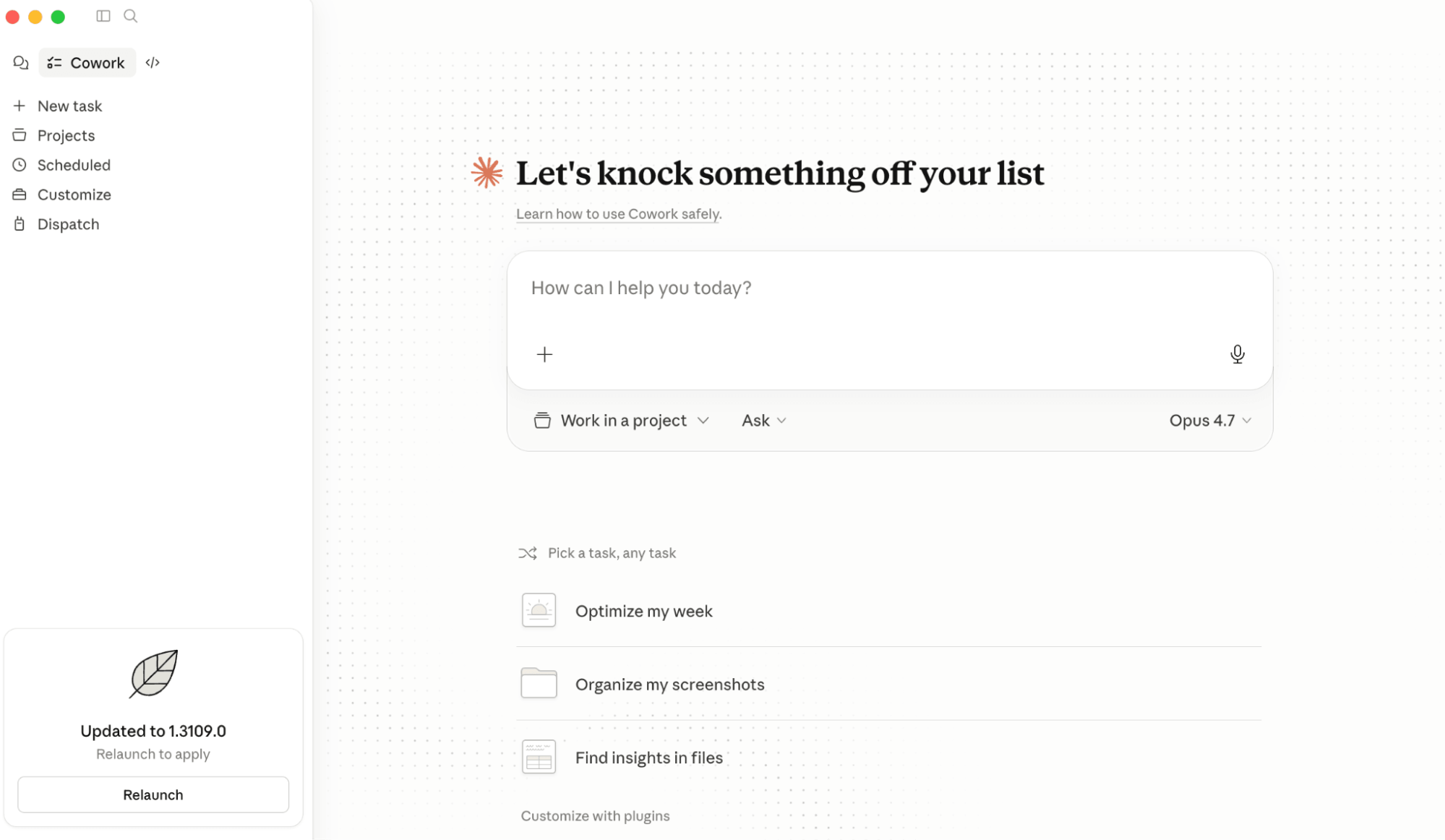
As you begin using Cowork, your mindset should shift from chatting with a collaborator to supervising a capable assistant who runs a workflow and checks in regularly when it needs access to something or when it requires explicit direction.
This is accomplished by connecting Cowork to Projects that have been enhanced with Connectors, Plugins, and Skills:
- The Project tells Cowork what you want to accomplish.
- Connectors let the Project access specific data sources, the internet, etc.
- Plugins or Skills tell the Project how to execute the work.
#2: How to Connect Cowork to a Claude Project
Claude Projects are dedicated workspaces you’ve created for specific purposes. For example, you’ve likely created projects for content generation, client personas, or research assistance in Claude’s traditional workspace.
You can connect any of your existing projects to Cowork, by clicking on the Work In a Project dropdown at the bottom of the chat window, selecting Create a New Project, then opening Import a Project.

Tired of Guessing Which AI Moves Matter?
New AI tools and strategies launch every week — and figuring out which ones matter takes hours you don't have.The AI Business Society filters the noise for you, with expert-led training you can put to work the same day — plus a community of marketers sharing what's actually working.
I'M READY FOR REAL AI RESULTS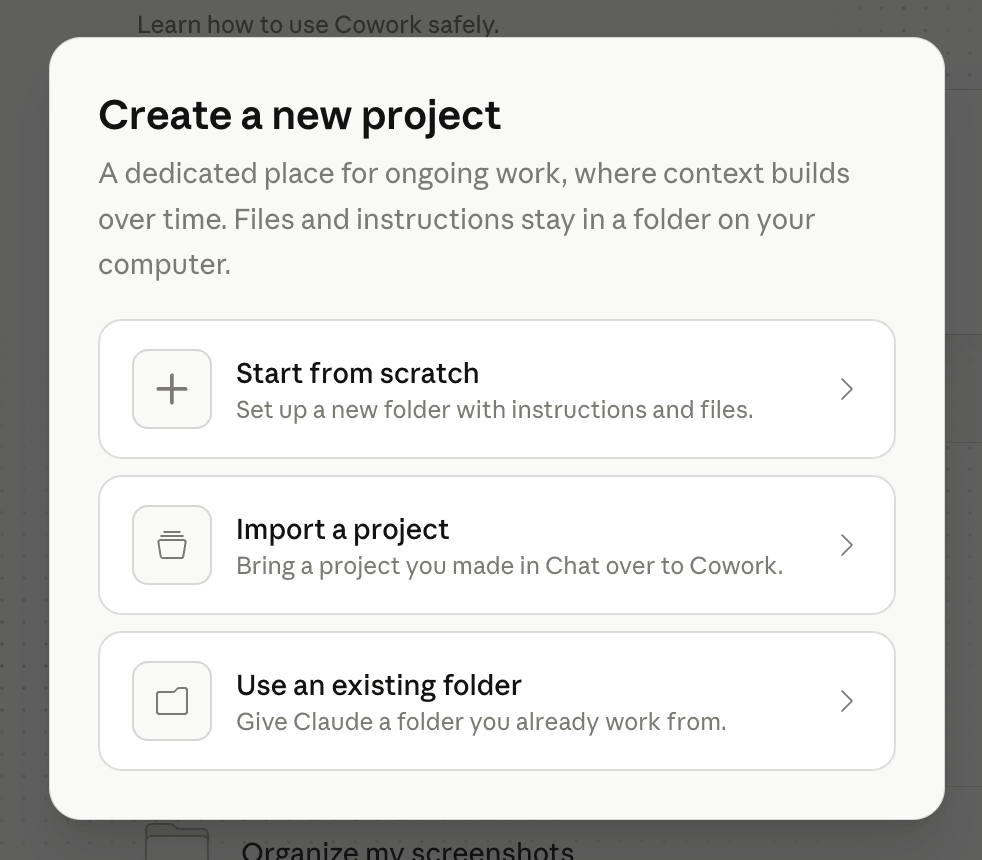
In the Projects from Chat field, search for your Project. Once connected, the entirety of that Project’s instructions, resources, personality, and rules become the context for everything Cowork does for you in that session.
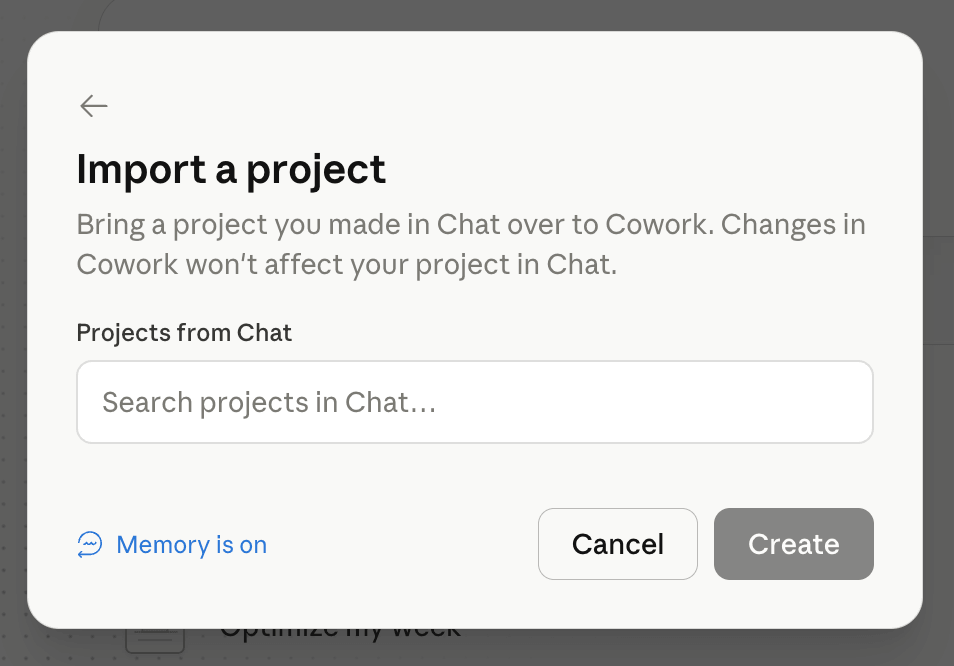
You can then tell Cowork to follow your project guidelines, extend the project’s work into new territory, or ask what the project is missing and let Cowork go find it.
#3: How to Find and Use Connectors in Cowork
Rather than you manually copying and pasting data between platforms or building automation workflows in tools like Zapier or Make, Connectors allow Claude Projects to communicate directly with other apps and services and make real time decisions about which tool to use for a given output.
For example, if you ask Cowork to build a tracker, it might notice your Airtable Connector and suggest building the tracker there. Or, if you ask Cowork to save a document, it can add that file directly to your Google Drive in a specified folder.
You can find Connectors by clicking on the + icon in the chat window.
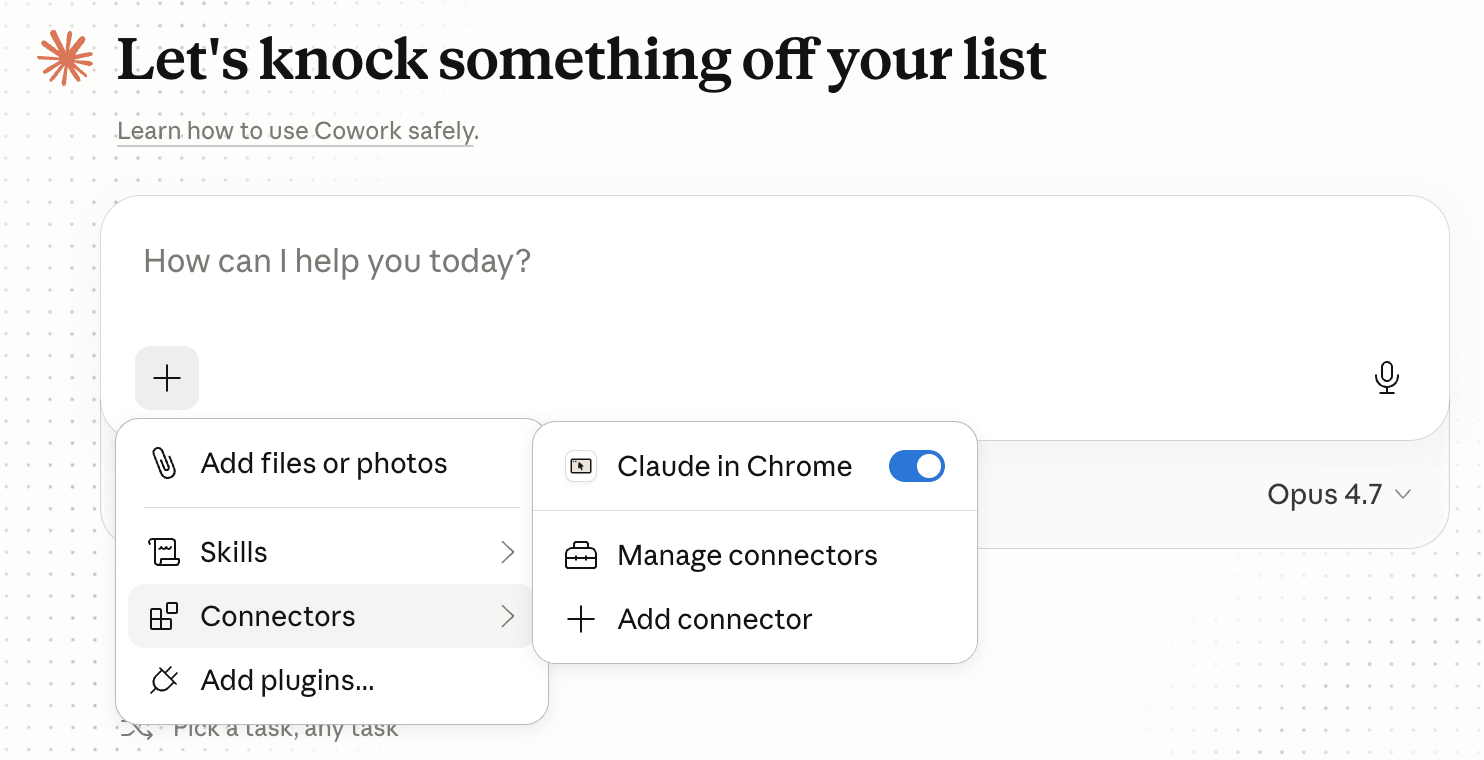
Click Add Connector to see what’s available. The list is extensive, covering tools such as Airtable, Asana, GitHub, Gmail, Google Drive, Google Calendar, Ahrefs, ActiveCampaign, and more.
Zapier and Make are also available as connectors when Cowork determines that a more complex automation is necessary.
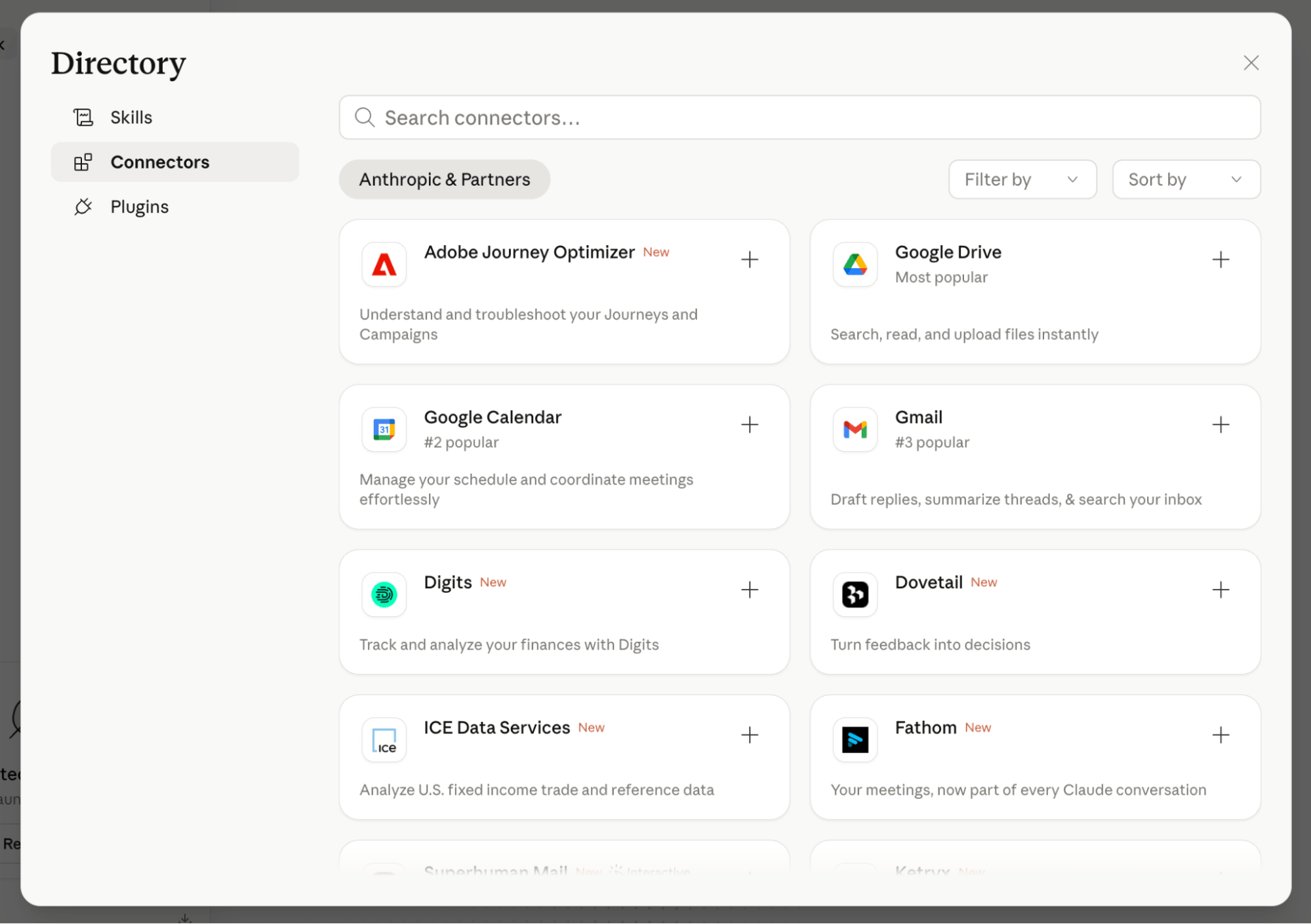
Dan uses the Google Drive Connector to give Cowork read access to his files and the ability to write outputs back to his Drive. The Airtable Connector lets Claude help him build out reporting without leaving the Cowork interface. The Gmail Connector executes his communication-related tasks.
#4: How to Find and Use Skills in Cowork
A skill is a packaged task that tells Claude exactly how to handle something you do repeatedly, so you don’t have to re-explain it every session. Dan describes it as a mini custom GPT.
Claude comes loaded with native skills it uses automatically. When it creates a Word document, it’s invoking a Word skill. When it generates a PowerPoint, it uses a PowerPoint skill.
But you can also build your own skills.
For example, Dan built an ICP skill by giving Claude his three ideal customer personas, then saying:
Build a skill from this.
Claude packaged the personas into a skill. Now, whenever he wants new content or ideas evaluated against his target customers, he simply says:
Run this by my ICPs.
The skill activates and runs his ideas against his personas. He uses a similar approach for brand guidelines: the guidelines are packaged as a skill, and any content Claude generates can be checked against them on demand.
To build a skill, start with any task you keep explaining over and over. Package that context and ask Claude to build a skill from it.
Alternatively, you can install a skill from the marketplace by clicking on the + icon in Cowork’s chat window, then on Add Skill to browse what’s available.
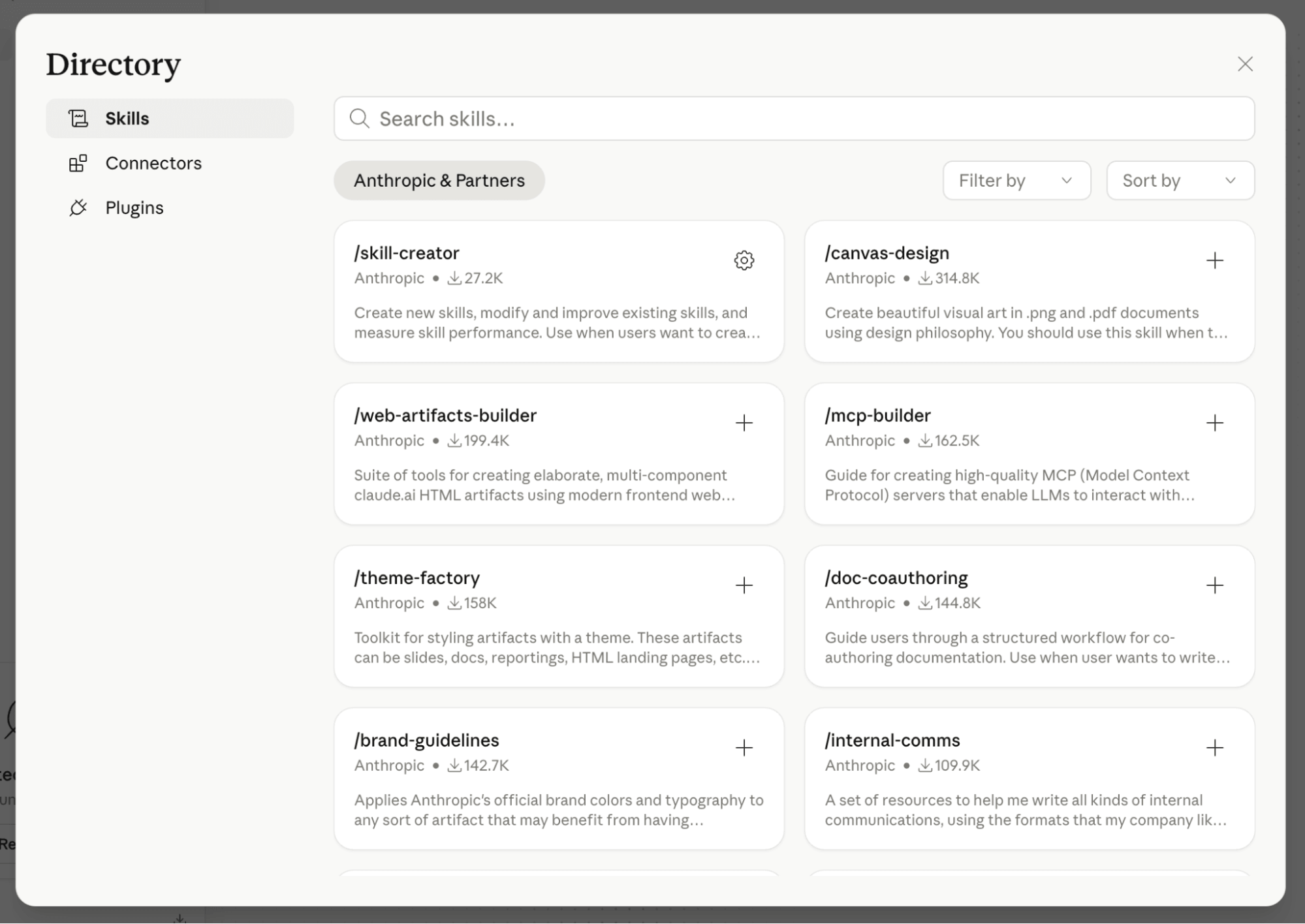
Pro Tip: You can drag a skill file directly into a Cowork conversation to install it on the spot.
#5: How to Find and Use Plugins in Cowork
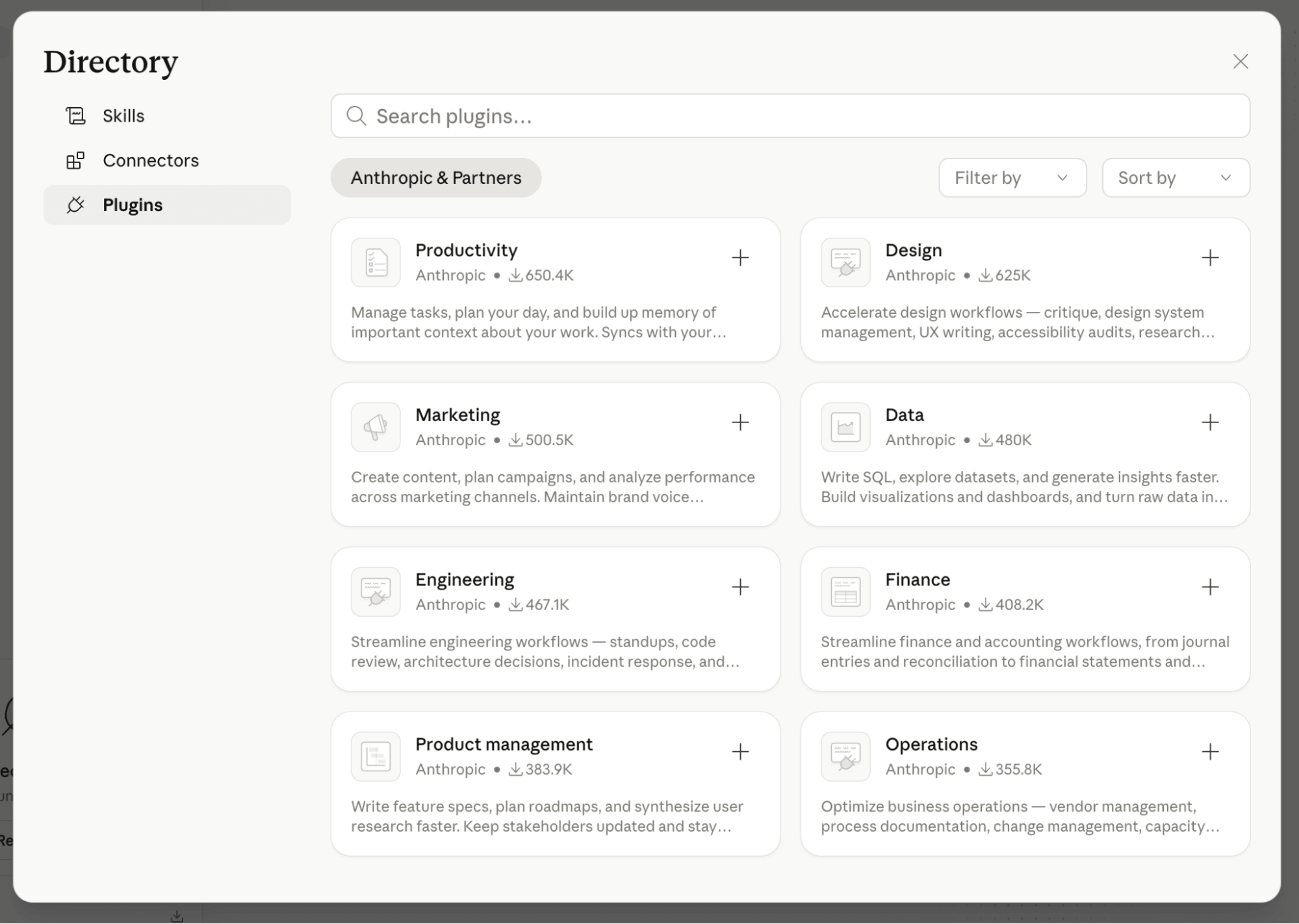
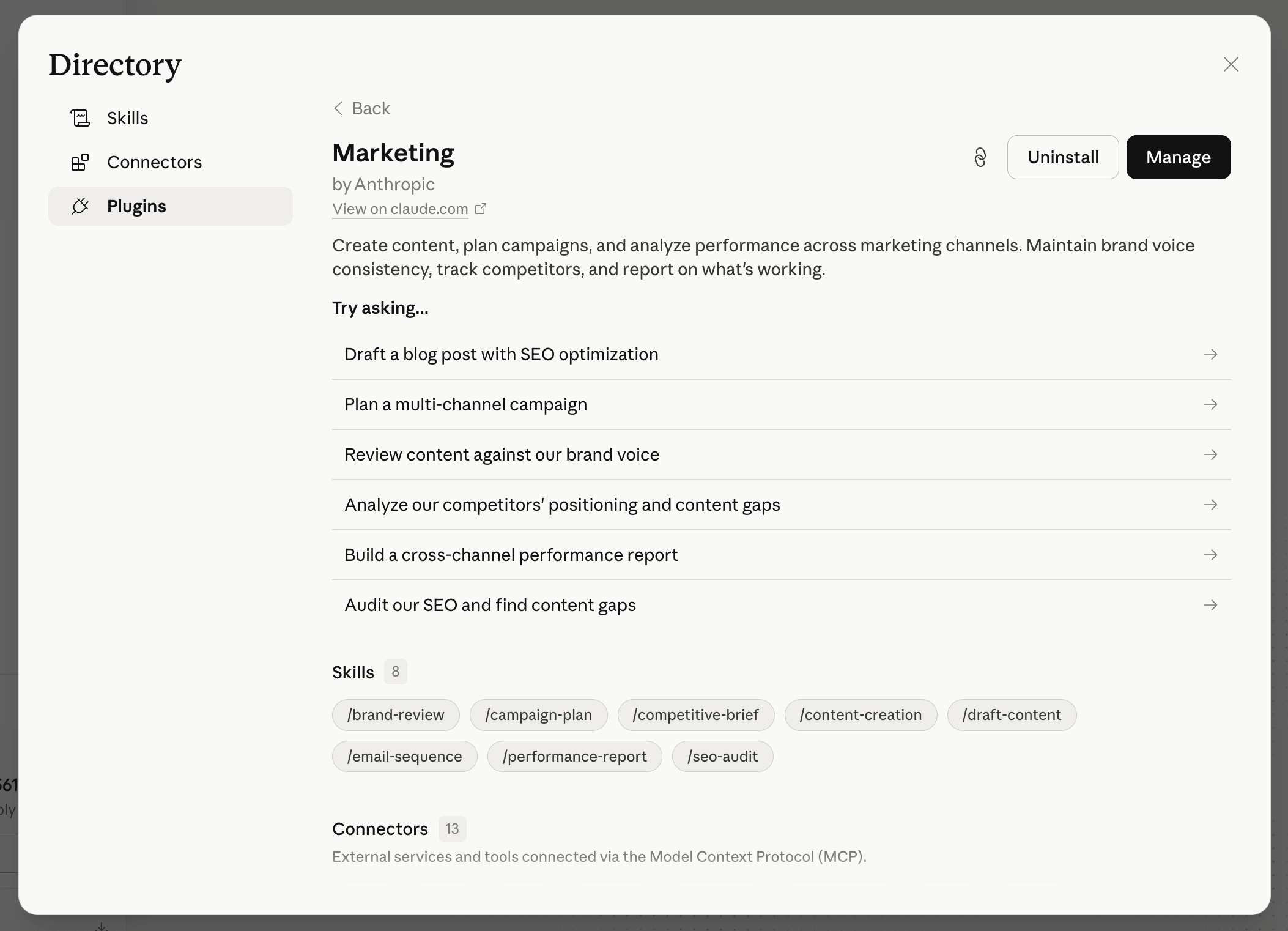
Plugins are collections of skills organized around a domain of expertise, such as marketing. Think of them as a themed bundle. Where a skill handles a single specific task, a plugin brings together several related capabilities you can call into your conversation.
To browse plugins, click on the + icon in the chat window and select Add Plugins. You’ll see plugins for specific platforms as well as categories of plugins that include productivity, design, marketing, data, engineering, and finance.
Clicking on a Plugin will show you a preview of its bundled Skills.
Dan Nestle is an AI strategist and co-founder of LilyPath, a company focused on helping people build authority and visibility using AI and LinkedIn. He hosts The Trending Communicator podcast. Follow him on LinkedIn.
Other Notes From This Episode
- Connect with Michael Stelzner @Stelzner on Facebook and @Mike_Stelzner on X.
- Watch this interview and other exclusive content from Social Media Examiner on YouTube.
Listen to the Podcast Now
This article is sourced from the AI Explored podcast. Listen or subscribe below.
Where to subscribe: Apple Podcasts | Spotify | YouTube Music | YouTube | Amazon Music | RSS
✋🏽 If you enjoyed this episode of the AI Explored podcast, please head over to Apple Podcasts, leave a rating, write a review, and subscribe.
Stay Up-to-Date: Get New Marketing Articles Delivered to You!
Don't miss out on upcoming social media marketing insights and strategies! Sign up to receive notifications when we publish new articles on Social Media Examiner. Our expertly crafted content will help you stay ahead of the curve and drive results for your business. Click the link below to sign up now and receive our annual report!

Where Do You Actually Stand With AI?
Most marketers use AI, but they don't know what's holding them back from real results.
Our 3-minute quiz pinpoints the one gap keeping you stuck — and gives you the exact next step to fix it.
GET MY RESULTS