by
by Want to build your own custom AI tools and automations, but don’t have coding or developer experience? Curious how Claude Code can help?
In this article, you'll discover how to set up Claude Code from scratch and build your first automation today.
Why Use Claude Code?
The biggest misconception about AI coding tools is that you need to know how to code to use them. Tyler Reed says the reality is that today’s models have become so capable that a coding background is no longer a prerequisite for creating automations. In fact, he says, some of the most prolific AI automation creators on YouTube have never written a line of code in their lives.
Claude Code is Anthropic's agentic AI tool that lets you build, automate, and connect applications through natural language, either by typing or speaking directly to it. It will handle the research, write the code, establish connections between apps, and execute the tasks you ask it to.
Before tools like this existed, building even a simple integration — say, connecting your Gmail to your calendar — meant spending hours reading API documentation, obtaining credentials and secret keys, and troubleshooting errors on forums like Stack Overflow.
Today, you describe what you want, and Claude Code figures out the technical path to get there.
Two Things to Know Before You Use Claude Code
Before you install Claude Code, you’ll need to understand two things.
First, to use Claude Code with any degree of impact, you’ll need a paid Claude subscription. If you already have a paid Claude account, Claude Code will run on the same subscription. If you don’t have a paid subscription, Tyler says the $20/month Pro subscription is perfect for beginners.
Second, Claude Code is a command-line interface (CLI) tool, which means you type your commands into a text-based window rather than in a chat or by clicking buttons in a visual interface.
On a Mac, you'll interact with Claude Code through your computer’s terminal; Windows and Linux have their own equivalent environments. If you've never seen a terminal before, Tyler describes it as a plain black screen where everything is text. It looks unfamiliar, but it isn’t complicated once you're inside.
Note: By default, Claude Code asks your permission before taking any action that affects your computer. Before Claude Code browses the web, creates a file, writes a document, or edits something in a folder, you'll see a prompt asking whether to allow or deny each action.
#1: Set Up Claude Code Step by Step
Getting Claude Code up and running involves a few distinct steps.
First, open your terminal.
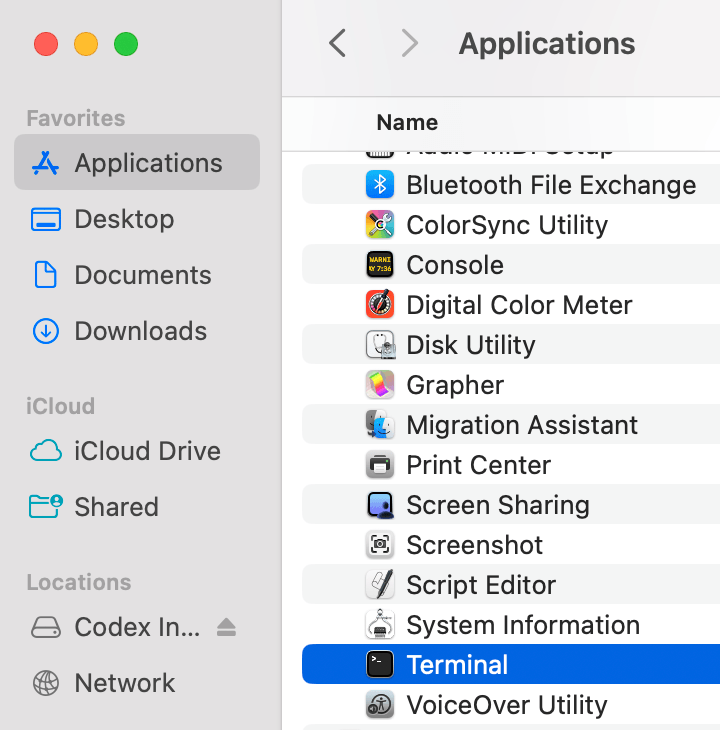
Next, follow Anthropic's official documentation, which contains clear copy-and-paste installation commands for whichever operating system you use — Windows, Mac, or Linux.
Go Deeper Than an Article Can Take You

Join thousands of small-business marketers at Social Media Marketing World — three days of AI, social media, and marketing strategy taught by world-class experts. April 1–3, 2027 in Anaheim.
Every session is pitch-free and built around tactics you can use yourself, no big team required. Your All-Access ticket includes an extra day of workshops, full access to AI Business World, and recordings of everything.
GET MY ALL-ACCESS TICKET — SAVE $800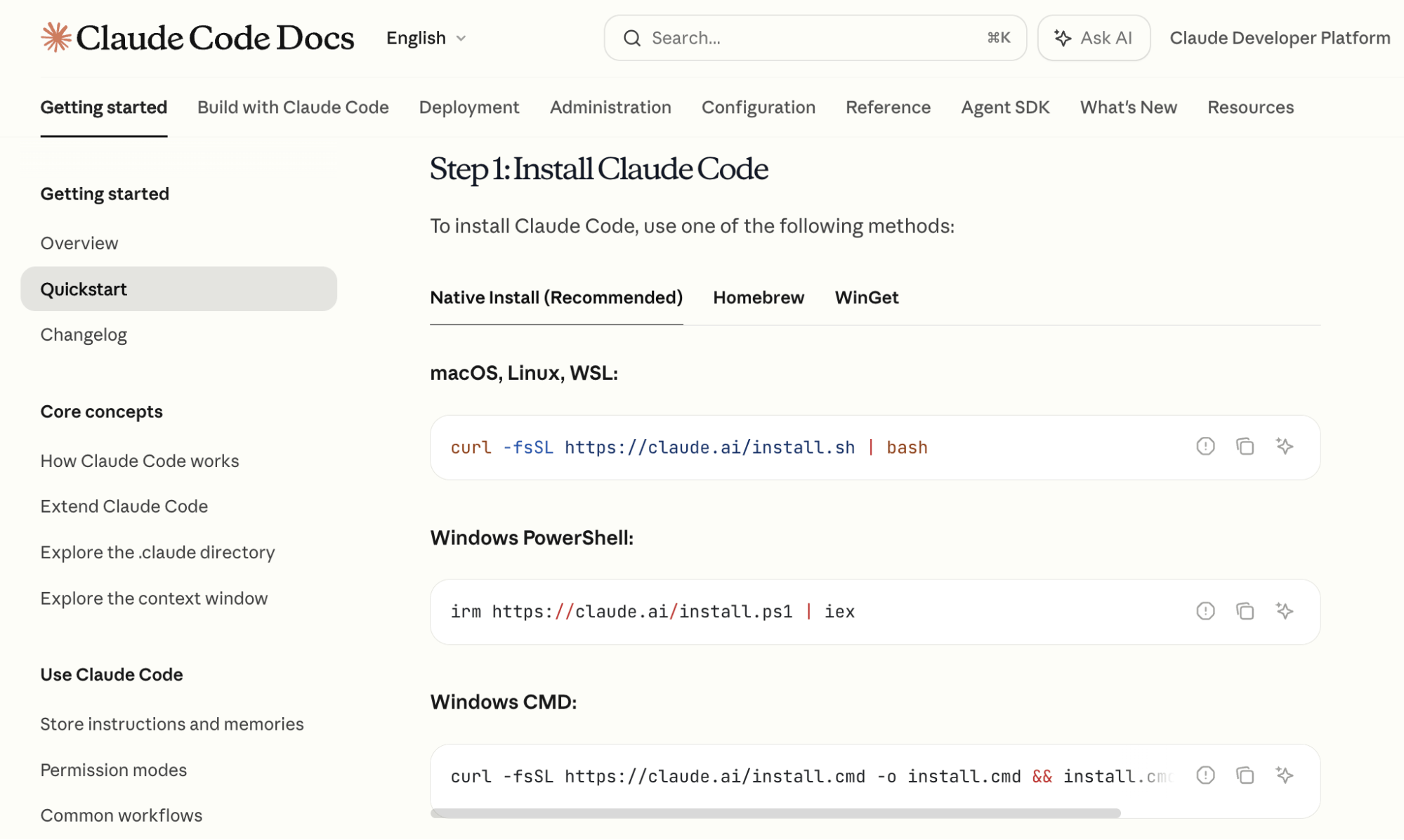
Copy the relevant installation command and paste it into your terminal window. Hit enter and wait while Claude Code is installed.
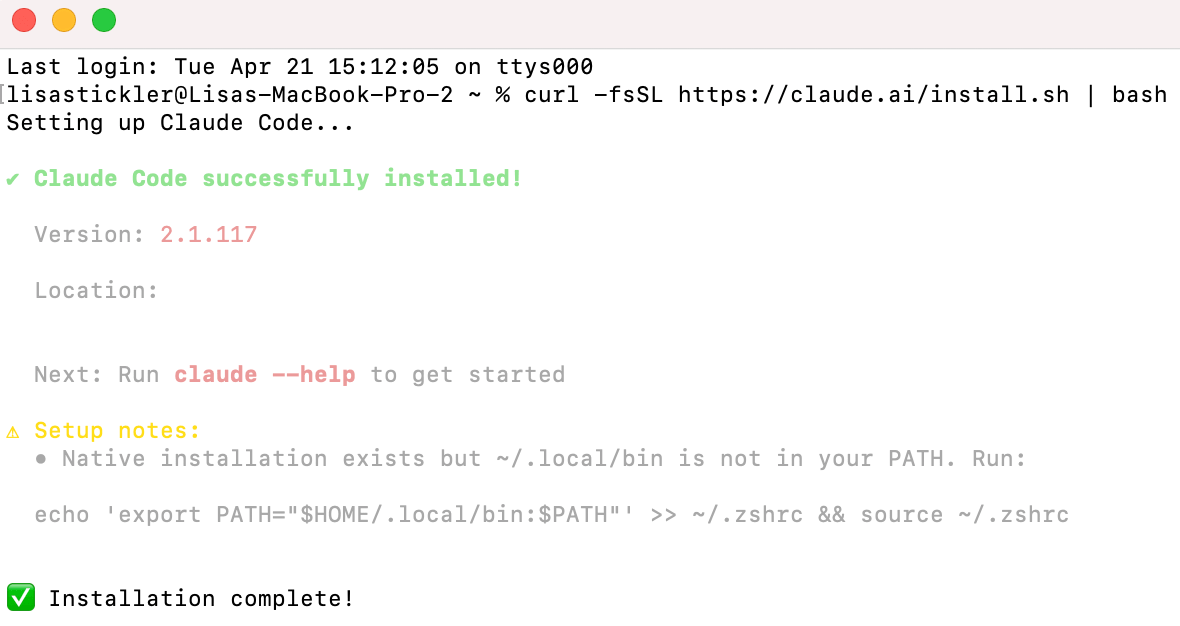
When you see a message that confirms installation, type the word ‘claude’ in the terminal. Claude Code will begin running and prompt you to log in.
Using the login command opens a browser window where you authenticate with the email address associated with your Claude subscription. Once you've completed that step, you're inside Claude Code and ready to choose the model you want to work in.
#2: Working in the Terminal With Claude Code: The Basics
In the terminal, you’ll use slash commands to access Claude Codes settings and features.
For example, to bring up the list of Claude’s models you can switch between during the course of your work, type:
/model
When working on a project in Claude Code, Tyler follows a specific two-step approach for selecting models.
He uses Opus first in the planning phase because it has the strongest reasoning capabilities and the largest context window, making it well-suited to thinking through an app's structure or a document outline. Once the plan is solid, he switches to the latest version of Sonnet for the actual coding and implementation, because Sonnet balances performance and token efficiency well.
Another example centers on context window management. In the bottom-right corner of the terminal, you can see a percentage indicating how full your context window is. As your conversation progresses, you may notice the context window nearing capacity. To create a summary of your conversation, allowing you to continue working in the same session without starting over, type:
/compact
#3: Working in the Terminal With Claude Code: Advanced Features
Once you're comfortable with Claude Code, two features dramatically increase what it can do for you over time.
Custom Skills
A custom skill is a package of instructions for a task you want to repeat. Tyler built a custom skill to help him with YouTube research. When he invokes the /youtube-research command, Claude Code opens the internet and researches competitor YouTube channels, pulling their top videos from the last two weeks, their descriptions, and even downloading the audio files for later transcription to analyze why specific videos performed well.

Tired of Guessing Which AI Moves Matter?
New AI tools and strategies launch every week — and figuring out which ones matter takes hours you don't have.The AI Business Society filters the noise for you, with expert-led training you can put to work the same day — plus a community of marketers sharing what's actually working.
I'M READY FOR REAL AI RESULTSCreating a custom skill is straightforward. You describe the task you want Claude Code to remember and repeat, and you ask it to create a skill from it. Claude Code saves it as a markdown file on your computer and names it with a slash command.
Create a skill from this task:

Search YouTube for my top 5 competitor channels, pull their highest-performing videos from the last two weeks, grab each video's title and description, and download the audio files.

Save it as a slash command I can reuse.
The next time you open Claude Code, you can type that slash command in any session and run the full task without re-explaining it to Claude Code.
Claude Markdown Files
Tyler recommends creating a markdown file for every project because it gives Claude Code persistent memory of your project across sessions.
You ask Claude Code to create a CLAUDE.md file for your project by typing:
/init
The resulting file is a plain-text summary of the project: what it does, what's been built, what's in progress. Every time you open a new session and return to that project folder, Claude Code reads the markdown file and uses it as a reference.
#4: Build Your First Automation With Claude Code: Google Calendar and Telegram
Ready to build your first Claude code project? Here’s one that is perfect for Claude Code beginners.
When you’re done, you’ll have built a custom assistant that reads your Google Calendar and sends you a daily briefing about the next day's schedule via Telegram so you can check in from anywhere without opening your calendar.
Step 1: Connect Your Google Calendar
Open Claude Code and say:
I want to have access to my Google Calendar.

Tell me how to do this.
Claude Code will walk you through the setup. If the steps feel too technical, Tyler suggests adding “explain like I'm five” to your prompt. He does this regularly himself so that Claude Code can break down exactly what to do, step by step.
The process typically involves an OAuth sign-in via Claude Code to authorize access to your Google account, along with retrieving credentials and secret keys from Google's Developer Console. Once those credentials are in place, Claude Code writes the connection code for you.
Step 2: Set Up a Telegram Bot
Telegram is a free messaging app, similar to Facebook Messenger. A bot is simply a separate automated account within Telegram that you can message back and forth with.
Inside Claude Code, type:
/telegram
You’ll be walked through the configuration process to create and connect a Telegram bot. That bot becomes the communication channel between Claude Code and your phone.
Step 3: Start Using Your Automation
Once both connections are in place, go back to Claude Code and type:
Read my Google Calendar and send me a Telegram message every morning with a summary of the next day's schedule.
Claude Code will write the script that ties the two together and confirm when it's running.
From that point on, Claude Code will read your calendar, summarize your schedule for the next day, and automatically push that summary to your Telegram bot each morning.
The one requirement is that your Claude Code session stays open on your computer. As long as it's running in the background, you're connected.
Working With Your Automation
Once up and running, the two-way nature of the Telegram connection means you can make requests conversationally from your mobile device as well as your computer. For example, you can message your bot to ask what you have tomorrow, add something to your calendar, or ask it to help optimize the timing of your day's tasks.
Other Notes From This Episode
- Connect with Michael Stelzner @Stelzner on Facebook and @Mike_Stelzner on X.
- Watch this interview and other exclusive content from Social Media Examiner on YouTube.
Listen to the Podcast Now
This article is sourced from the AI Explored podcast. Listen or subscribe below.
Where to subscribe: Apple Podcasts | Spotify | YouTube Music | YouTube | Amazon Music | RSS
✋🏽 If you enjoyed this episode of the AI Explored podcast, please head over to Apple Podcasts, leave a rating, write a review, and subscribe.
Stay Up-to-Date: Get New Marketing Articles Delivered to You!
Don't miss out on upcoming social media marketing insights and strategies! Sign up to receive notifications when we publish new articles on Social Media Examiner. Our expertly crafted content will help you stay ahead of the curve and drive results for your business. Click the link below to sign up now and receive our annual report!

Where Do You Actually Stand With AI?
Most marketers use AI, but they don't know what's holding them back from real results.
Our 3-minute quiz pinpoints the one gap keeping you stuck — and gives you the exact next step to fix it.
GET MY RESULTS