by
by Are you avoiding video because you think the production is too time-consuming or expensive? Want to use AI video tools to create and edit quality marketing videos?
In this article, you'll discover a step-by-step breakdown of the video editing workflow, the specific AI tools that handle each stage, and how to put it all together to cut your editing time by as much as 90%.
3 Benefits of AI-Assisted Video Editing
Most people who know about AI video tools think of them as visual generators, software that creates synthetic images or footage to drop into a video.
Greg Preece says this framing misses the bigger opportunity entirely. Generating visuals is, as he puts it, the icing on the cake.
The highest return on investment comes from using AI to edit video because it eliminates the time-draining tasks that make editing a bottleneck in the first place.
Once that misconception is out of the way, three concrete benefits come into focus.
Speed
The most obvious benefit is raw time savings. AI tools can turn editing jobs that previously took 10 to 20 hours into tasks that take under two.
Cost
Cost savings are real but less immediately obvious. The first layer is opportunity cost: every hour saved on editing is an hour that can go toward revenue-generating work. The second layer applies to businesses that have previously needed to hire video editors or production staff. AI now empowers many entrepreneurs and small marketing teams to handle editing in-house at a quality level that once required outside help.
Consistency
For anyone trying to grow on social media, consistency is one of the most important variables. Greg points out that the bottlenecks AI removes are precisely the ones that cause marketers and business owners to fall behind on publishing schedules. When editing takes a fraction of the time, putting out more video in social media posts becomes feasible, and more content means a faster feedback loop. You learn more quickly what your audience responds to, which editing styles work, and what production choices actually matter.
#1: The 6-Stage Video Editing Process
Greg's starting point isn't a tool recommendation; it's a mindset shift that recognizes what an edit is used for.
An edit's only job is to serve the message. It exists to help the viewer receive what you're trying to communicate, not to impress them with production value.
Greg sees both beginners and experienced creators fall into the trap of over-editing: adding constant visual changes, rapid-fire cuts, and elaborate effects in an effort to hold attention every second. This approach often does the opposite, creating noise that distracts from the content itself.
Before reaching for any AI tool, decide what your edit actually needs to accomplish. Simpler is almost always better.
Understanding where AI helps with video editing requires understanding the editing workflow first. Greg breaks it into five distinct stages, each of which can now be assisted or automated by a dedicated AI tool.
Go Deeper Than an Article Can Take You

Join thousands of small-business marketers at Social Media Marketing World — three days of AI, social media, and marketing strategy taught by world-class experts. April 1–3, 2027 in Anaheim.
Every session is pitch-free and built around tactics you can use yourself, no big team required. Your All-Access ticket includes an extra day of workshops, full access to AI Business World, and recordings of everything.
GET MY ALL-ACCESS TICKET — SAVE $800Stage 1: Creating The Rough Cut
After recording your footage, the first editing task is the rough cut, in which you remove everything that shouldn't be in the final video.
This includes mistakes and false starts, retakes where you restarted a sentence partway through, extended pauses and silence, and sections you recorded but later decided to cut entirely.
Stage 2: Fixing Mistakes
The rough cut removes content. The second stage corrects content that needs to stay but was delivered incorrectly. The most common example is realizing after a 20-minute recording session that you mispronounced or misstated something important.
Traditionally, fixing this meant setting up your camera again, re-filming just that line, and re-editing it in. That process alone could add an hour to a session.
A related issue is eye movement. Beginners reading from a script often don't realize how obviously their eyes are scanning left to right until they sit down to review the footage.
Stage 3: Including B-Roll
B-roll is supplemental footage inserted over your main recording to visually reinforce what you're saying.
If you're talking about a specific exercise, you might cut to footage of yourself actually doing it. B-roll serves two purposes: it adds visual interest and can cover imperfections in your main footage, like a moment when your eyes drifted from the camera, without requiring a reshoot.
Stage 4: Adding Visual Enhancements
This stage covers additions that aren't essential but can improve the viewing experience.
Subtitles are one of the most practical: on platforms like LinkedIn, videos auto-play with the sound off, and subtitles allow a viewer scrolling past to understand what the video is about before they ever turn on the audio.
Visual effects, such as an explosion in the background or an animated element on screen, can help stress a point or capture attention in the feed.
Lower thirds, the name tags or labels that appear at the bottom of the frame, also fall into this category.
Stage 5: Optimizing Audio
Audio can be divided into two tasks: enhancing the vocal recording you already have and adding new audio to the video.
New audio includes a backing music track and sound effects that complement what's happening on screen.
Audio quality matters more than most creators expect. A video with weak visuals but strong audio can still perform well, but great visuals paired with poor audio is a serious problem.
Stage 6: Repurposing Long-Form Video
The final stage is taking your finished long-form video and adapting it into shorter clips for distribution across platforms.
Each social platform has different format requirements and audience behaviors, and manually re-editing a 30-minute social media video content into a dozen short clips is no longer a major time investment.
#2: The AI Video Editor Tool Stack: 6 AI Video Editing Tools
Before AI, Greg's editing time for a single video ranged from 10 to 20 hours. Using the tool stack described below, he now completes editing in 1.5 to 2 hours, a reduction of roughly 90%.
When Greg first reclaimed this time, he channeled it into publishing more videos. His channel's growth accelerated, and the increased output attracted brand sponsorship deals that hadn't been possible at his previous publishing pace. More recently, he's used the reclaimed hours to pursue entrepreneurial projects that extend beyond content creation itself, something that wasn't on the table when editing was consuming most of his week.
Greg recommends six tools, one for each major stage of the editing process.
Gling for Rough Cut Video Edits
Gling is a desktop application for both Windows and Mac, priced at roughly $10-$20 per month. It is Greg's favorite tool in the stack and the one he uses every single day.
The workflow is simple: after downloading footage from your camera, you import it into Gling. Select the types of things you want removed (broken sentences, incomplete retakes, extended pauses, etc.) and let the app process the file.
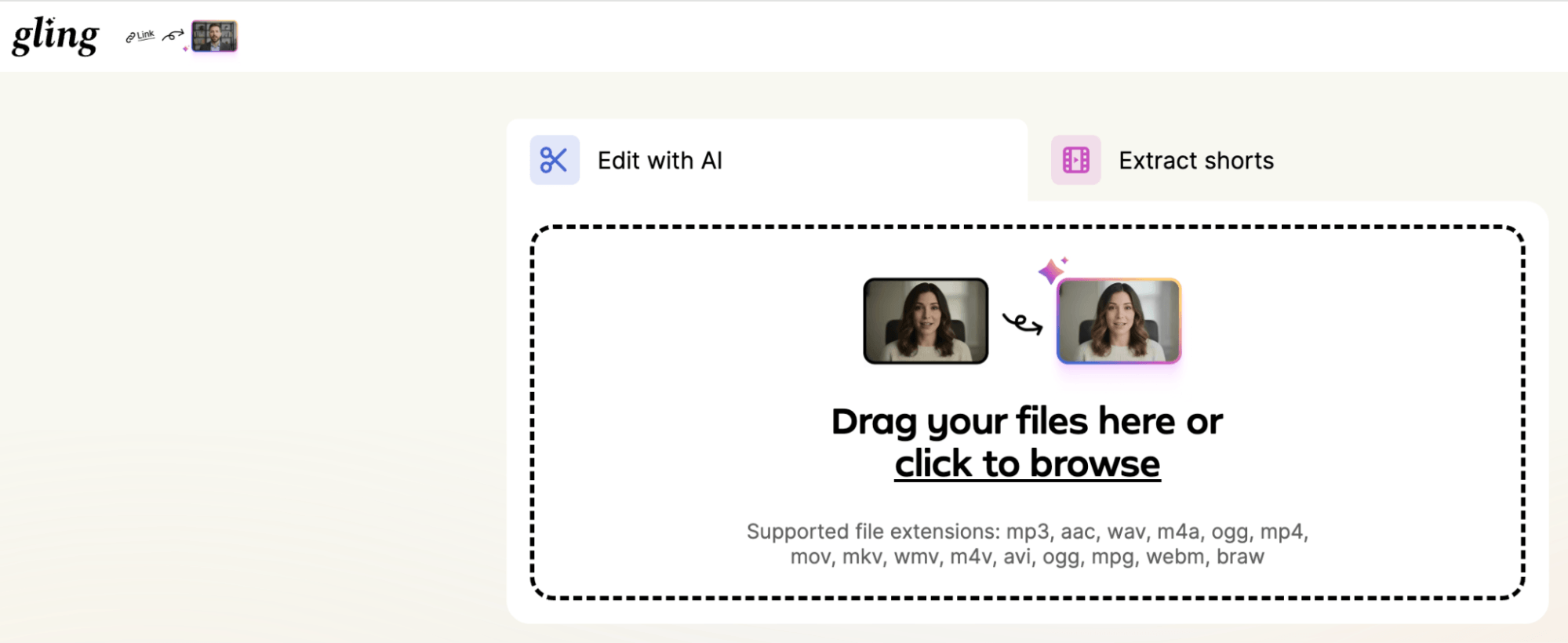
Analysis takes approximately three minutes regardless of video length.

Tired of Guessing Which AI Moves Matter?
New AI tools and strategies launch every week — and figuring out which ones matter takes hours you don't have.The AI Business Society filters the noise for you, with expert-led training you can put to work the same day — plus a community of marketers sharing what's actually working.
I'M READY FOR REAL AI RESULTSGling transcribes the entire recording into text and then visually displays within that transcript what it has removed and what it has kept. If it removed something you wanted to keep, a single click restores it. If it missed something, you highlight the corresponding text and tell it to cut.
Gling is non-destructive, so when you export from Gling into a professional editor like Adobe Premiere or Final Cut Pro, all the edit decisions travel with the file. You can retrieve anything Gling removed directly inside Premiere.
For creators who want a simpler setup, Gling can also serve as a standalone tool: you can make basic sequence adjustments and export the final video directly without moving to another editor.
Descript for Fixing Mistakes in Video
In the context of Greg's video editing workflow, Descript’s most powerful feature is voice cloning combined with lip sync correction.
When you've misspoken a word anywhere in your recording, Descript clones your voice, and you simply type what you actually meant to say. Descript replaces the audio with a synthesized version in your voice and simultaneously adjusts what your lips appear to be doing in the video, so the corrected word looks natural on camera.
Pro Tip: For words that are difficult to phonetically synthesize, you can type the word in its phonetic spelling rather than its standard spelling, or use a separate AI model to generate the phonetic version for you first.
Descript goes beyond spoken-mistake correction and can serve as a full-featured editing environment for the remainder of the workflow. Greg recommends using Gling first for the rough cut, then bringing the file into Descript for subsequent stages.
Kling for Adding B-Roll and Visual Effects
Kling is an AI video generator, with the most current version being Kling 3.0. Greg positions it as offering the best price-to-quality ratio among currently available AI video generators. It’s cheaper than OpenAI's Sora or Google's video generator and, in his assessment, produces better outputs in most use cases.
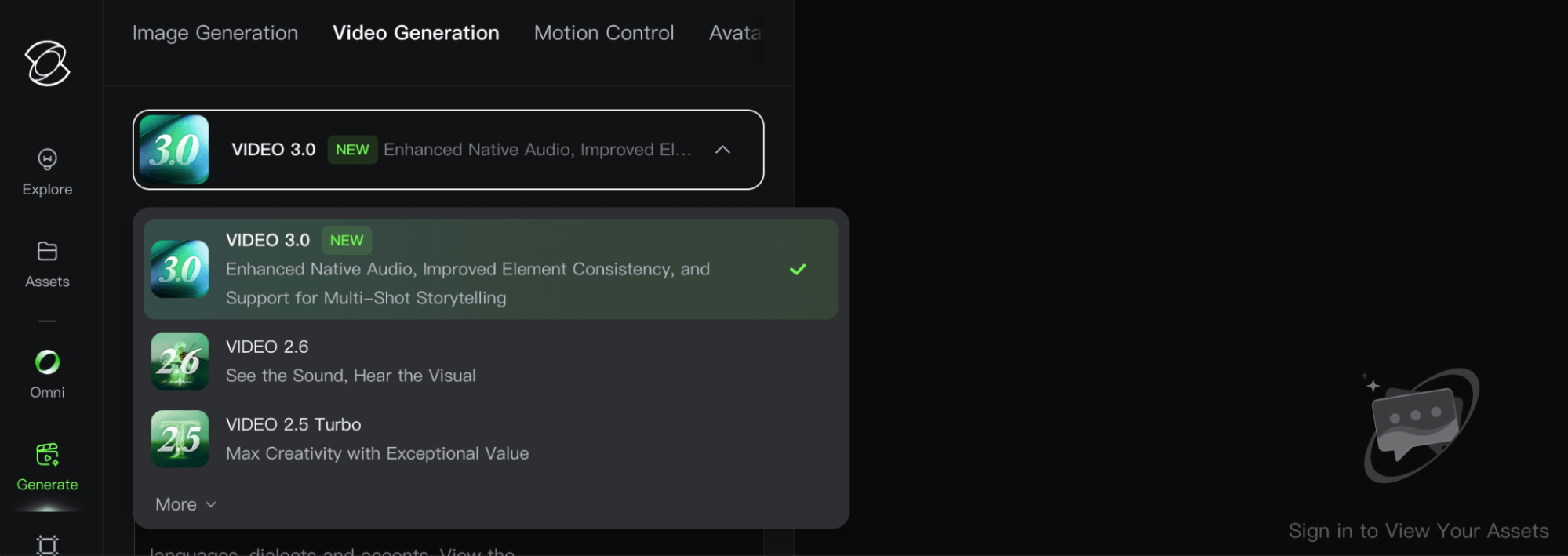
Kling works in two modes.
In text-to-video mode, you describe the footage you want, and Kling generates it.
The image-to-video approach gives you precise control over characters, environments, and visual style. You create a still image of exactly what you want the opening frame to look like, upload it to Kling, and instruct it to generate the next 8 to 10 seconds of action from that starting point.
Greg uses Kling primarily for B-roll. For example, if he's discussing a topic that calls for footage of an eagle flying over a mountain, he generates that footage in Kling rather than searching through stock video libraries. He's also used Kling to generate videos of himself by starting with an AI-generated image of himself in a specific scenario, then animating it with Kling.
Kling also handles the visual effects category: the explosions, animated overlays, and scene elements you might want to add for emphasis.
Adobe Podcast for Optimizing Audio
Adobe Podcast's Enhanced Speech feature addresses the audio quality problem at the source.
You upload your recorded audio, and Enhanced Speech processes it into a professional-grade recording. Background noise from a passing motorcycle, ambient room sound, or the natural limitations of a budget microphone all get corrected. Greg describes the before-and-after as something you have to hear to believe.
This tool is especially valuable for creators who don't yet have professional recording equipment or a soundproofed space. It removes one of the common excuses for not publishing — imperfect audio — by fixing the problem after the fact.
ElevenLabs for Custom Music and Sound Effects
ElevenLabs handles both of the new audio categories: backing music tracks and sound effects.
To generate a sound effect, you type a description of the sound you need, and ElevenLabs produces it. To generate a music track, you specify the length, the genre, and the overall vibe (hip-hop, chill ambient, string quartet, etc.), and ElevenLabs creates a custom track to those specifications.
Because the music is AI-generated and original, it carries no copyright claims, meaning you won't receive YouTube Content ID strikes for music usage on your videos.
OpusClip for Repurposing Long-Form Video Into Video Clips
OpusClip, for which Greg is an official creator, began as a tool for podcasters who needed short clips pulled from one- to two-hour recordings to distribute on TikTok and Instagram.
You upload a long video, and Opus Clip spends roughly 5 minutes analyzing it before automatically outputting 10 to 30 shorter clips. It selects the most engaging moments, applies captions, and formats them for the platform.
The tool has expanded to support longer clips in the five- to fifteen-minute range, and it now produces both vertical and horizontal aspect ratios.
#3: How to Structure Your AI-Enabled Video Editing Workflow
The workflow moves through the tool stack in a sequence:
- Gling handles the rough cut and removes all the unwanted material in the first pass.
- The edited file exports to Descript, where any spoken mistakes are corrected using voice cloning and lip-sync.
- Kling generates B-roll footage and visual effects as needed.
- Adobe Podcast processes audio to professional-quality standards.
- ElevenLabs produces any backing music or sound effects.
- Opus Clip takes the finished video and creates a library of shorter clips for multi-platform distribution.
Pro Tip: AI doesn't have to replace a human editor entirely. AI tools and human editors can coexist in the same operation. Greg still sends some videos to a human editor for projects where full delegation is faster than any workflow.
Greg Preece is an AI educator and content creator who helps entrepreneurs, marketers, and content creators simplify and accelerate the video production process. His YouTube channel focuses on practical AI video tools and workflows. Follow him on LinkedIn.
Other Notes From This Episode
- Connect with Michael Stelzner @Stelzner on Facebook and @Mike_Stelzner on X.
- Watch this interview and other exclusive content from Social Media Examiner on YouTube.
Listen to the Podcast Now
This article is sourced from the AI Explored podcast. Listen or subscribe below.
Where to subscribe: Apple Podcasts | Spotify | YouTube Music | YouTube | Amazon Music | RSS
✋🏽 If you enjoyed this episode of the AI Explored podcast, please head over to Apple Podcasts, leave a rating, write a review, and subscribe.
Stay Up-to-Date: Get New Marketing Articles Delivered to You!
Don't miss out on upcoming social media marketing insights and strategies! Sign up to receive notifications when we publish new articles on Social Media Examiner. Our expertly crafted content will help you stay ahead of the curve and drive results for your business. Click the link below to sign up now and receive our annual report!

Where Do You Actually Stand With AI?
Most marketers use AI, but they don't know what's holding them back from real results.
Our 3-minute quiz pinpoints the one gap keeping you stuck — and gives you the exact next step to fix it.
GET MY RESULTS