by
by Is your entire AI workflow built around one platform? What's your plan if it goes down, slows down, or gets too expensive?
In this article, you'll discover how to build AI workflows that aren't tied to any single platform.
Why Portable AI Workflows Matter
When marketers find a preferred AI platform, they often build projects, prompts, and workflows specific to that tool. This feels efficient, but it creates dependencies that can cost you unexpectedly.
The main reason to build portably is stability. AI platforms can go down, and a business built entirely around one tool is at risk. As AI becomes embedded in operations, a platform outage becomes a real operational risk.
Performance is another concern. AI model updates can unexpectedly affect output quality. Nicole describes how, on some days, a model is just “off,” and being able to switch platforms without losing your setup is valuable.
Financial factors are also important. Nicole notes that current AI model prices are low, but they may rise to reflect real costs. Lock-in leaves you with no leverage or alternatives if pricing changes.
There's also a functional benefit. Different models have various strengths. If you use Claude but need image generation, being able to switch to ChatGPT or OpenAI without losing context or tools is a key advantage.
Portability doesn't mean using every platform at once; it just means you're never trapped.
Nicole Leffer has developed a different approach: building AI workflows that are platform-agnostic from the start. The components of a truly portable workflow: skills, curated context files, and organized instructions, travel with you wherever you go, so no single provider holds your infrastructure hostage.
The good news is that building a portable workflow doesn't mean rebuilding. You likely already have the raw material. It's mostly a matter of organizing and storing it so you can pick it up and run with it on any platform, any time.
#1: How to Create AI Workflow Portability With External Storage
This tactic is simple: store the instructions and context you use with AI models outside your main platform.
That means downloading your project instructions, GPT configurations, Gemini gems, or Copilot agent setups and storing them in a specific, targeted location such as a Google Drive folder, Dropbox folder, SharePoint location, or hard drive.
In Claude, ChatGPT, and Gemini, you can use MCP (Model Context Protocol) connectors which allow different AI models to access external files or databases, to give each of your AI models access to these external locations. Nicole describes these connectors as essentially APIs (Application Programming Interfaces) that let your AI talk to other tools. MCPs are highly portable and can be connected across multiple AI platforms, making them a consistent way to maintain data connections as you move between models.
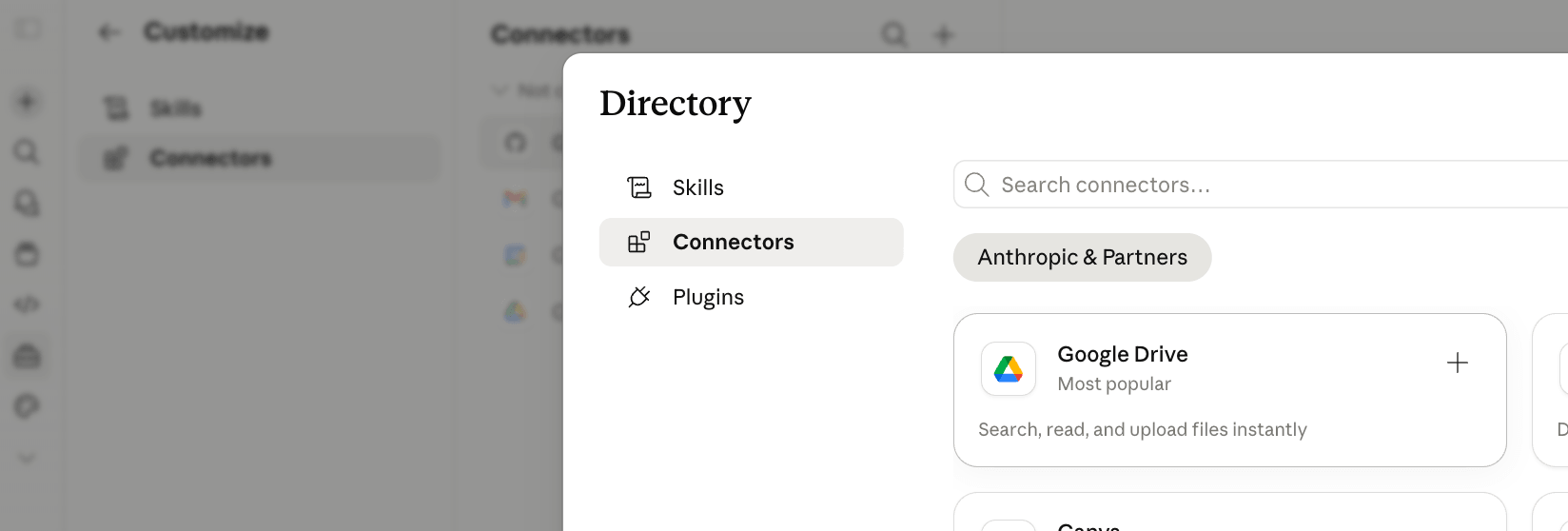
With this external storage in place, if your primary platform goes down or you need to switch to a different tool, you can recreate your setup in minutes rather than starting from scratch.
3 Days of World-Class Training—Zero Travel!
Couldn't make it to Social Media Marketing World and AI Business World this year? Get all of the great content at a fraction of the price with a Virtual ticket.
That’s full access to recordings of every keynote, workshop, and session—the ones people travel thousands of miles to see. Don't wait. Get your Virtual ticket and enjoy actionable content that you can watch anytime, anywhere.
A common misconception is that AI performs better when it has access to more context—the idea being that it can find what it needs if you give it access to your entire document library. In practice, the opposite is true. AI produces better results when you hand it the exact document you want, rather than asking it to sift through everything you own.
Identify relevant context for each regular task and organize those files into a curated folder. Instead of connecting AI to all of Google Drive, point it to a specific location.
There's also a maintenance advantage. Update that one file once, and every AI platform that references it gets the update automatically. You don’t have to re-upload files across multiple tools!
#2: How to Create AI Workflow Portability With Skills
At its core, a skill is a .zip file containing a Markdown file, a plain-text document formatted to provide structured instructions that an AI can process. This file instructs an AI how to perform a specific task. That markdown file can be as simple as written directions, or it can include templates, brand assets, logos, code scripts, calculators, and reference documents, all bundled together. The only required element is the markdown file. Everything else is optional.
A marketer might have a skill for brand guidelines, another for copywriting, and a third for data analysis.
Regardless of which AI platforms and models you build your skills in, you can download the SKILL.md file (a markdown document containing AI instructions) and upload it to any other AI that supports skills. So, a skill built and downloaded from Claude can be used in Claude Cowork, Claude Code, ChatGPT, or Codex.
A useful way to picture it is to think about when Neo downloads martial arts in The Matrix; he instantly knows how to fight. A skill works the same way; hand it to an AI, and it immediately knows how to perform the task the skill describes.
How to Make a Portable AI Skill
Claude, ChatGPT, and Codex all have a built-in Skill Creator. In Claude, the skill creator can be manually enabled in your settings. In ChatGPT, skill functionality is available on Team and Enterprise accounts.
Once activated, you simply chat with the skill creator, describe what you want the skill to do, and the markdown file is written for you. For those comfortable with code, skills can also include scripts and custom logic, but the entry-level version is just a conversation.

For example, Nicole gives the Skill Creator a recurring prompt or set of instructions she already uses and tells it to turn it into a skill.
Here are the instructions for a custom GPT I've been using to summarize news stories.

Please use them to create a skill.
The skill creator formats a SKILL.md file. However, even with the skill creator doing the heavy lifting, you will need to test the output, run it against real tasks, and refine the markdown instructions until the skill performs exactly as you need it to do.
When you’re happy with the results, you can download the file for use in any other model or share it with a colleague.
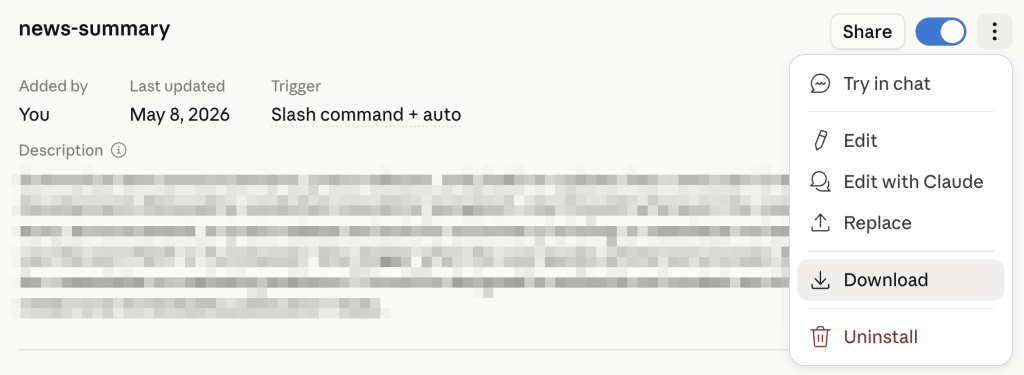
Michael built a copywriter skill in Claude, zipped it up, and handed it over to his director of marketing, who installed it and could use it immediately without needing access to Michael’s account or project.
Pro Tip: For teams on enterprise accounts, skills can also be deployed organization-wide, making it easy to standardize workflows without requiring everyone to build from scratch.
The Risk of Using Public Skills
Nicole warns against downloading skills from strangers online. Skills are shared on GitHub and sold across skill libraries, often framed as sharing a prompt, but they're not the same thing.
A skill is not just a text prompt. It can contain a virus or code that actually instructs the AI to connect to your CRM (Customer Relationship Management system), extract customer data, and send it to an external destination without you knowing what’s happening. Skills can also include files with embedded viruses.

Want to Unlock AI Marketing Breakthroughs?
If you’re like most of us, you are trying to figure out how to use AI in your marketing. Here's the solution: The AI Business Society—from your friends at Social Media Examiner.The AI Business Society is the place to discover how to apply AI in your work. When you join, you'll boost your productivity, unlock your creativity, and make connections with other marketers on a similar journey.
I'M READY TO BECOME AN AI-POWERED MARKETERNicole's standard for a reputable source is high. She names Anthropic, OpenAI, and Google as examples of sources she would trust. Skills shared within your own organization from a colleague on the same team or enterprise account are also safe. Everything else carries risk.
#3: How to Create AI Workflow Portability With Excel
The most complete example of how all these components fit together is Nicole's method for turning an Excel workbook into a fully portable AI agent that works interchangeably with Claude, ChatGPT, and Copilot.
To accomplish this, open the Microsoft Excel desktop app and activate the Claude for Excel plugin, ChatGPT for Excel plugin, and Microsoft Copilot plugins. All three plugins will coexist in the same file, and you can switch between them at any point.
When called, each plugin opens a chat sidebar in Excel, where the connected AI acts as an agent, generating text, actively moving between tabs, creating formulas, inserting data, and manipulating the workbook structure the way a human user would.
Plan the Workbook Structure With AI, Outside of Excel
Nicole starts by opening an AI chat in Codex, but you can also use Claude or ChatGPT.
She describes what she wants the Excel workbook to do, then works through the structure conversationally, outlining which tabs should exist, how they connect, which formulas are needed, and what she'll want the AI to help her with once the workbook is live.
For her consulting time tracker, she wanted the workbook to understand her client contract, log hours she reports verbally, automatically update a dashboard, and write email recaps to clients based on current data. She worked all of that out in the planning conversation with Codex before ever opening Excel.
I want you to help me design a consulting time-tracking workbook in Excel.

Before building anything, I want us to plan the structure together.

Here’s what the workbook needs to do:

I work with multiple consulting clients on monthly contracts.

Each client has a different hourly rate, monthly retainer, and scope of work.

I want the workbook to track my time, compare logged hours against contract limits, and help me communicate clearly with clients.

Start by asking me the most important planning questions to determine what tabs, columns, formulas, actions, prompts, and examples to include.
Generate the Briefing Files
Once the plan is finalized, Nicole asks the AI to package everything into a markdown briefing file so she has a complete set of step-by-step instructions for an AI agent to build the workbook from scratch.
If the workbook requires supporting data, such as categorization tables or reference lists, she requests them as JSON files.
She also includes every prompt the Excel-based AI will need for each major action she plans to take inside the workbook. Embedding them in the plan means they'll be written directly into the workbook as dedicated tabs once it's built.
Great.

Based on everything we just planned, I need you to turn this into a complete markdown briefing for an AI agent that lives inside Excel.

The goal of the briefing is to give the Excel AI agent everything it needs to build the workbook exactly as we designed it.

Include every prompt the Excel AI agent will need to take action.

If any structured data would help the Excel AI agent build this more accurately, create JSON examples.

Write this as if the Excel AI agent has not seen our conversation and needs a clear, complete handoff.
Deploy the Briefing Files Inside Excel
With the briefing files ready, Nicole opens Excel, activates the AI plugin she wants to use (she typically uses Claude because she prefers the aesthetic), and drags the markdown briefing and any supporting files into the chat sidebar. Her prompt is straightforward:
I worked with another AI to write this briefing for you.

Make the workbook.
In about 10 to 15 minutes, the AI builds the entire workbook structure, including all tabs, formulas, the dashboard, and embedded prompt tabs.
From there, Nicole can refine the worksheet by chatting with the AI in Excel using conversational prompts such as: add a tab, adjust the dashboard, update a formula.
Build Cross-AI Platform Memory Into the Excel Workbook
This is where the portability becomes most powerful.
Nicole has a portable skill she’s saved in her Claude and ChatGPT accounts. The skill instructs the AI that whenever it accesses a spreadsheet, it must read every tab containing “AI,” “Agent,” or “Instructions” before doing anything else, and follow those instructions for the entire session.
The skill is simple, but the result is a self-briefing workbook. Every time she opens an AI plugin in Excel, it automatically reads the embedded instructions, reviews the history, understands what it's supposed to do, and is ready to act regardless of which AI she's using that day.
One tab in Nicole’s workbook is a history log. The instructions embedded in the workbook explicitly command the AI to log every update, change, and action to this history log tab. And every time the AI starts a new session, its startup routine includes reading the history log before doing anything else.
Because the instructions, prompts, and history all live inside the workbook itself, you're not locked into any single AI platform. If Claude is unavailable, open ChatGPT for Excel or Microsoft Copilot instead. The next agent will read the same tabs and history and continue the work seamlessly.
Pro Tip: If you're not ready to build a full skill, just prompt the AI manually at the start of each session.
Read the tabs that have your instructions before we start.
Nicole Leffer is an AI advisor who helps B2B marketers improve their results with AI. Visit her website and check out her Foundations in Generative AI for B2B Marketing course. Follow Nicole on LinkedIn.
Other Notes From This Episode
- Connect with Michael Stelzner @Stelzner on Facebook and @Mike_Stelzner on X.
- Watch this interview and other exclusive content from Social Media Examiner on YouTube.
Listen to the Podcast Now
This article is sourced from the AI Explored podcast. Listen or subscribe below.
Where to subscribe: Apple Podcasts | Spotify | YouTube Music | YouTube | Amazon Music | RSS
✋🏽 If you enjoyed this episode of the AI Explored podcast, please head over to Apple Podcasts, leave a rating, write a review, and subscribe.
Stay Up-to-Date: Get New Marketing Articles Delivered to You!
Don't miss out on upcoming social media marketing insights and strategies! Sign up to receive notifications when we publish new articles on Social Media Examiner. Our expertly crafted content will help you stay ahead of the curve and drive results for your business. Click the link below to sign up now and receive our annual report!
Curious About How to Use AI?
Our newest show, AI Explored, might be just what you're looking for. It's for marketers, creators, and entrepreneurs who want to understand how to use AI in their business.
It's hosted by Michael Stelzner and explores this exciting new frontier in easy-to-understand terms.
Pull up your favorite podcast app and search for AI Explored. Or click the button below for more information.