by
by  Do you want to promote time-sensitive sales using Facebook ads? Wondering how to set up Facebook dynamic ads for Black Friday, Cyber Monday, or other seasonal sales?
In this article, you'll discover how to set up your product feed to run Facebook dynamic ads with beginning and end dates.
#1: Design Product Images That Reflect the Holiday Season
This holiday season is the perfect opportunity to change up your creatives. You can and should differentiate them from the look you've been using the whole year, which your audience has grown accustomed to.
There are two ways to spice up your creatives:
- Use a custom creative frame.
- Change the creatives on your website to match the holiday season. Presenting them as “gifts” will help spark customers' interest.
Using a creative frame allows you to style your Facebook dynamic ads quite easily. Check out this step-by-step walk-through on how to create frames for your dynamic ad campaigns.

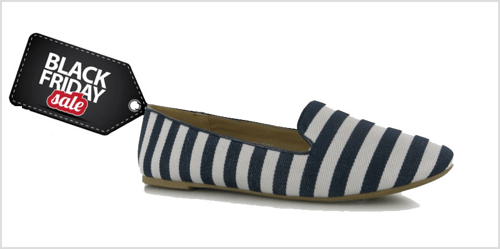
If creating a frame sounds a bit tedious, you can always use Facebook's overlay feature to make your ads stand out. Although the feature is not as powerful and flexible as using a frame, you can grab your audience's attention by displaying the percentage off the regular price, free delivery, and so on.
Changing the creatives on your website may be time-consuming, especially if you have a large number of products on your site. If your promotion isn't valid for all of your products, Facebook will let you focus on only the ones that are affected.
#2: Set Up Your Product Feed for Time-Sensitive Sales
The product feed is the core of your Facebook dynamic ads. It contains information on all of the products you've uploaded to Facebook. Based on the information in your product feed, Facebook will populate your product catalog.
Although the setup process may sound daunting, this article walks you through how to create a product feed with Google Sheets. This method of creating a product feed offers you flexibility to add columns that will come in handy for time-sensitive promotions.
Add a current_price Column
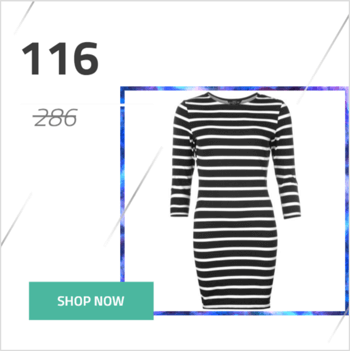
Including the current_price column in your feed lets you display a wealth of additional information on both your ad creative and copy. The frame below shows the current_price and price (strikethrough value).
3 Days of World-Class Training—Zero Travel!
Couldn't make it to Social Media Marketing World and AI Business World this year? Get all of the great content at a fraction of the price with a Virtual ticket.
That’s full access to recordings of every keynote, workshop, and session—the ones people travel thousands of miles to see. Don't wait. Get your Virtual ticket and enjoy actionable content that you can watch anytime, anywhere.
Insert sale_price_start_date and sale_price_end_date Columns
If you're running time-sensitive sales where you need to display discounted prices for a specific time period without having to update the feed, the sale_price_start_date and sale_price_end_date columns are ideal.
You'll need to format dates according to the ISO‑8601 standard and input the time in GMT. So, for example, if you want to display the discounted price for a specific product starting on October 5, 2018 at 8:00 AM, enter 2018-10-05 08:00:00 in the row that corresponds to that product and under the column sale_price_start_date.
These columns will work well with your Black Friday and Cyber Monday promotions. Keep in mind that after the end date passes, your products will display the original prices.
Use Custom Labels
Facebook provides five custom labels—custom_label_0, custom_label_1, custom_label_2, custom_label_3, custom_label_4—to insert additional information about your products. One great use for them is to store information on your margins, either in the form of text (low, medium, high profit margin) or a numeric value (10%, 25%, etc.).
This isn't data you'll necessarily display in your Facebook dynamic ads, but it will help you create relevant product sets.
Upload Your Products to Your Catalog Manually
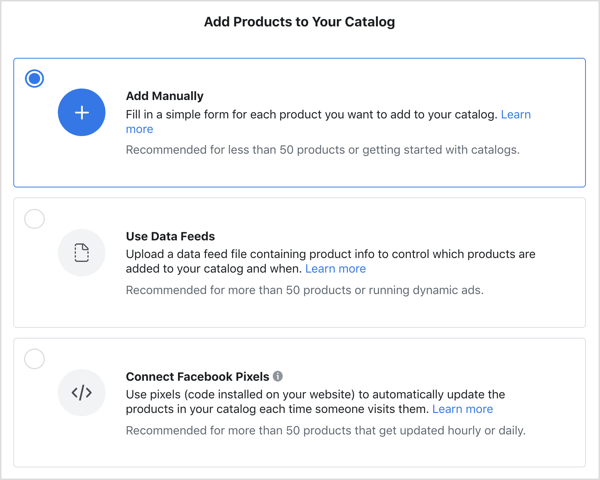
When you set up a catalog with Catalog Manager, you have the option to add products to it manually.

Want to Unlock AI Marketing Breakthroughs?
If you’re like most of us, you are trying to figure out how to use AI in your marketing. Here's the solution: The AI Business Society—from your friends at Social Media Examiner.The AI Business Society is the place to discover how to apply AI in your work. When you join, you'll boost your productivity, unlock your creativity, and make connections with other marketers on a similar journey.
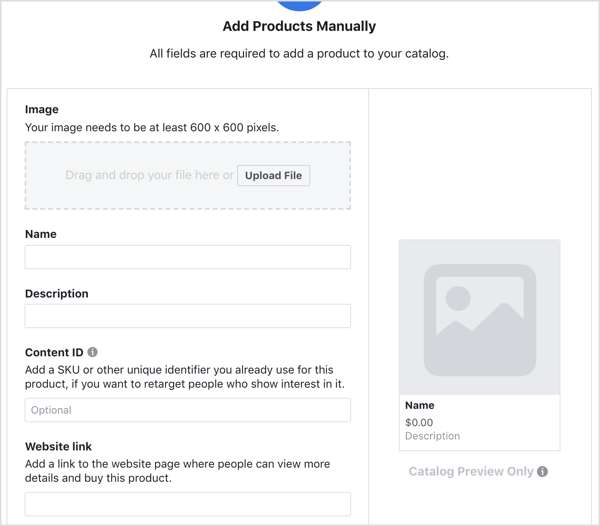
I'M READY TO BECOME AN AI-POWERED MARKETERAfter you select that option, you see a page where you can enter the details about the first product. Adding products manually is a good option if you have a small number of products to upload (fewer than 100).
#3: Group Your Products Into Product Sets
The most common way to create Facebook dynamic ads is to use all of the products in your feed. However, if you create a product set, you can show more relevant products or tailor your bid strategy accordingly.
To create a product set, go to Catalogs in your Business Manager. On the Product Sets tab, click the Create Product Set button.
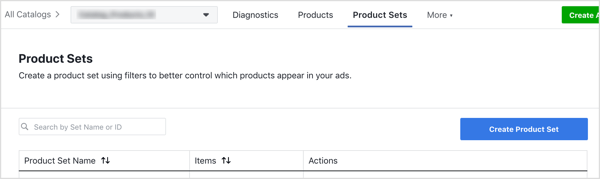
To create a product set, you need to apply filters based on the fields of your product feed. To create a product set with products from a specific brand, choose Brand from the first drop-down list. Then click in the Add Brand field and choose the brand(s) you want from the drop-down list that appears.
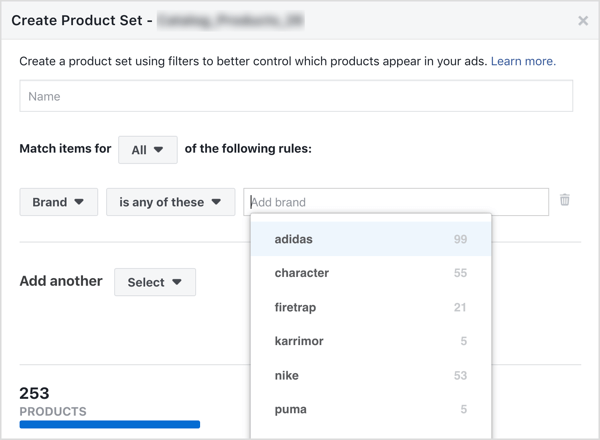
You can further narrow the number of products by applying additional filters. Keep in mind that the final product set will contain products that meet all conditions.
If you've implemented some of the suggestions above, you'll see them as options when you set up a product set. This allows you to create product sets containing products with a specific sale date, profit margin, and so on. You can also create a product set with all of your bestsellers by inserting their product IDs.
To make the most out of your product sets when creating an ad set, choose any of the product sets you created earlier (or create one at the ad set level) and apply different frames. This way, even if you're targeting the same audience (be mindful of the audience size), they won't see your same creative over and over again.
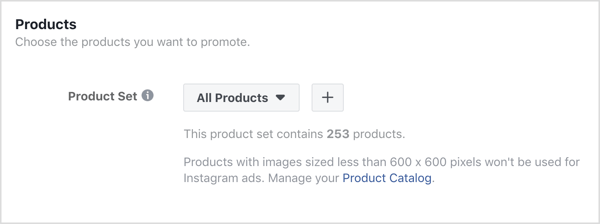
If you want to create a product set during the ad creation process, click on the + sign in the Products section at the ad level. Then run your dynamic ads campaign as normal.
Pro Tip: Optimize Your Dynamic Ads for International Audiences
If you're targeting an international audience of people who speak different languages, Facebook's multilanguage dynamic ads feature will help you show the right product to the right user at the right time and in the right language. This is a combination of dynamic ads and dynamic language optimization.
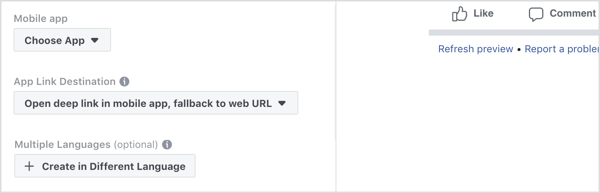
During the ad setup process, find the Multiple Languages section and click the Create in Different Language button.
Next, choose the default language and add up to four additional languages.
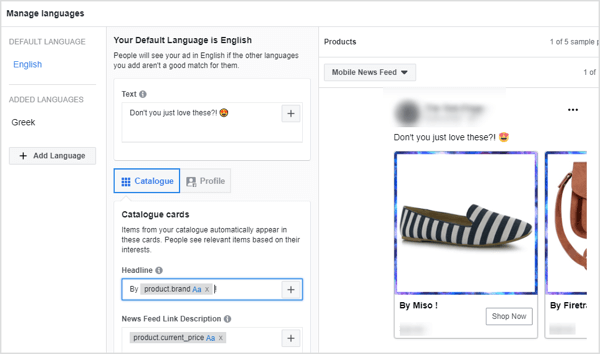
Fill in the form with the required information and click Save when you're done.
Conclusion
The last 4 months of the year are undoubtedly the most important for many businesses with Black Friday, Cyber Monday, and the holiday season taking place. The buyer's intent is there; people are looking to buy gifts for their loved ones and themselves. With a very competitive environment, you want to make sure customers will choose you over your competitors.
Facebook dynamic ads yield great results in terms of return on ad spend, and click-through and conversion rates. This holiday season, make sure your dynamic ads stand out from those of your competitors, and optimize all aspects of your campaigns.
What do you think? Has this tutorial inspired you to take your dynamic ads to the next level? Which of the recommendations will you implement for Black Friday, Cyber Monday, and the rest of the holiday season? Please share your ideas in the comments below.
More articles about Facebook dynamic ads:
- Discover how to remarket to website visitors with Facebook dynamic ads using Ads Manager.
- Learn how to integrate a Shopify store with your Facebook marketing.

Curious About How to Use AI?
Our newest show, AI Explored, might be just what you're looking for. It's for marketers, creators, and entrepreneurs who want to understand how to use AI in their business.
It's hosted by Michael Stelzner and explores this exciting new frontier in easy-to-understand terms.
Pull up your favorite podcast app and search for AI Explored. Or click the button below for more information.